1Who’s in right now
- 1.Go to Attendance → Who’s In. It refreshes by itself.
- 2.The counts show who was expected, who arrived, who is late, not arrived, not started yet and on leave.
- 3.Each card shows when the person clocked in and how long they have worked.
- 4.Someone forgot to clock out? Click Clock out now.
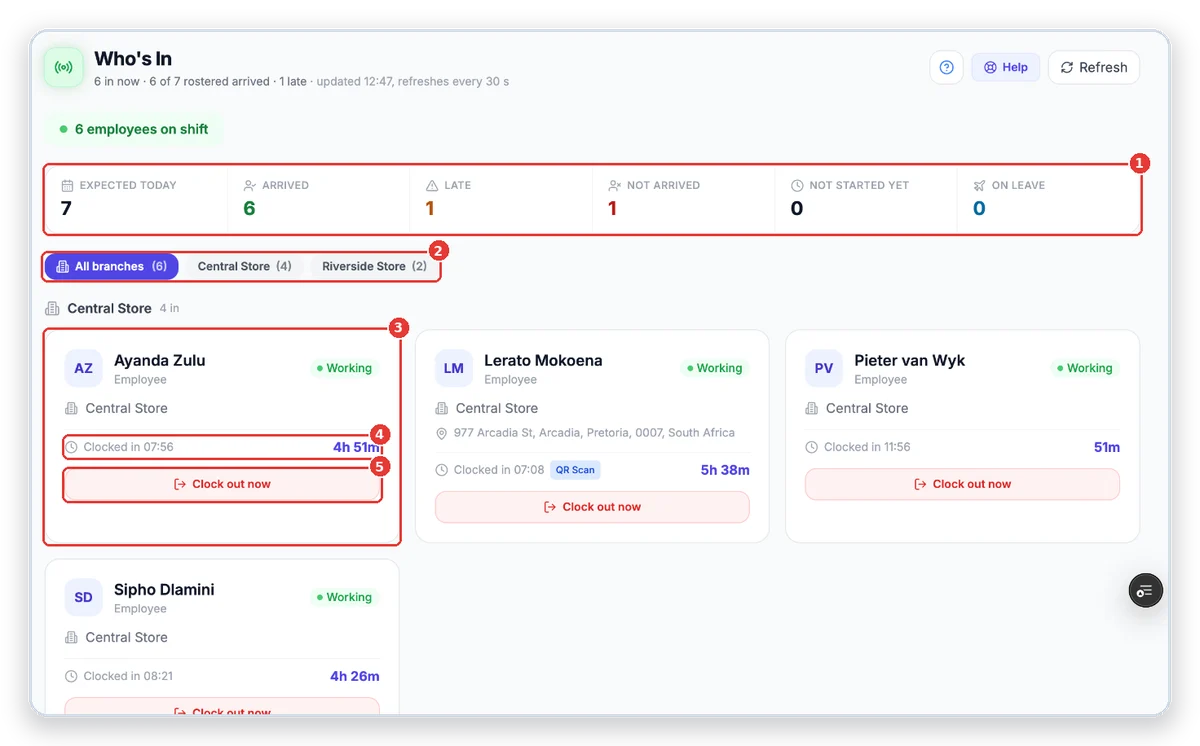
- 1Today at a glance.
- 2One branch or all.
- 3A person at work.
- 4Clocked in at, and hours so far.
- 5Clock them out.
2Review a day
- 1.Go to Attendance → Timesheet Review. It opens on yesterday — the day you usually check.
- 2.Pick the branch and Daily or Weekly. Use the arrows to change the day.
- 3.Normal days need nothing — Approve … normal approves them all at once.
- 4.Click a person with an exception (late, early, no clock-out…) to deal with it.
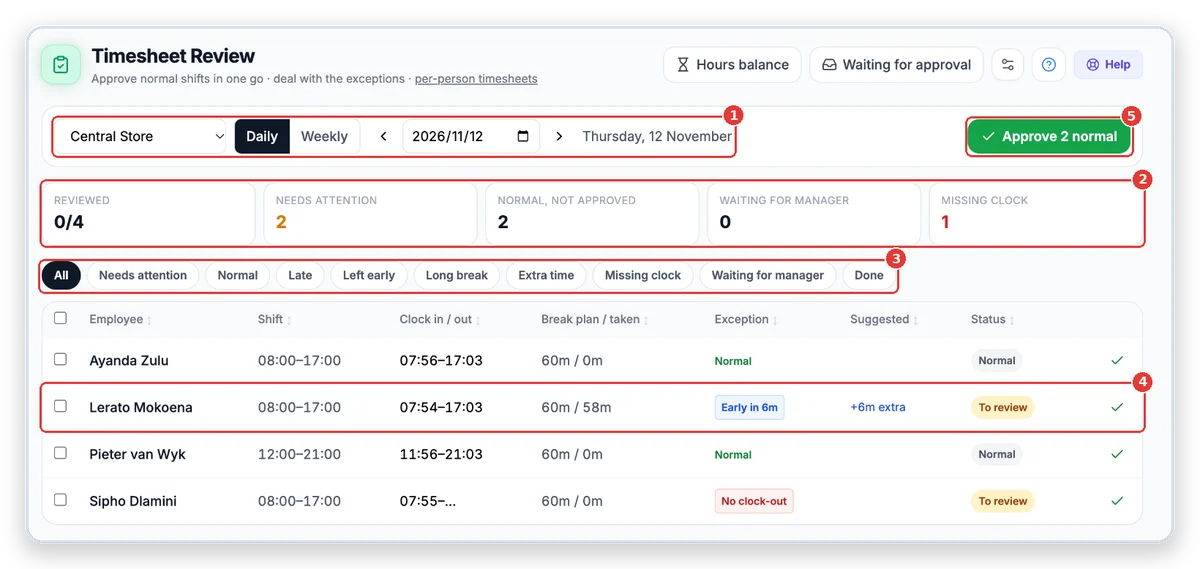
- 1Branch, day or week, and the date.
- 2The day in numbers.
- 3Show only what you need: late, left early, missing clock…
- 4A day that needs a look — the tag says why.
- 5Approve all the normal days in one go.
3Sort out an exception
- 1.The panel shows the rostered shift next to what was clocked.
- 2.A missing clock-out must be fixed on the person’s timesheet first.
- 3.Otherwise choose: Deduct time, Propose overtime (pay it or give time off), or Propose a written warning. Add a reason.
- 4.Click Approve & next to move straight on to the next person.
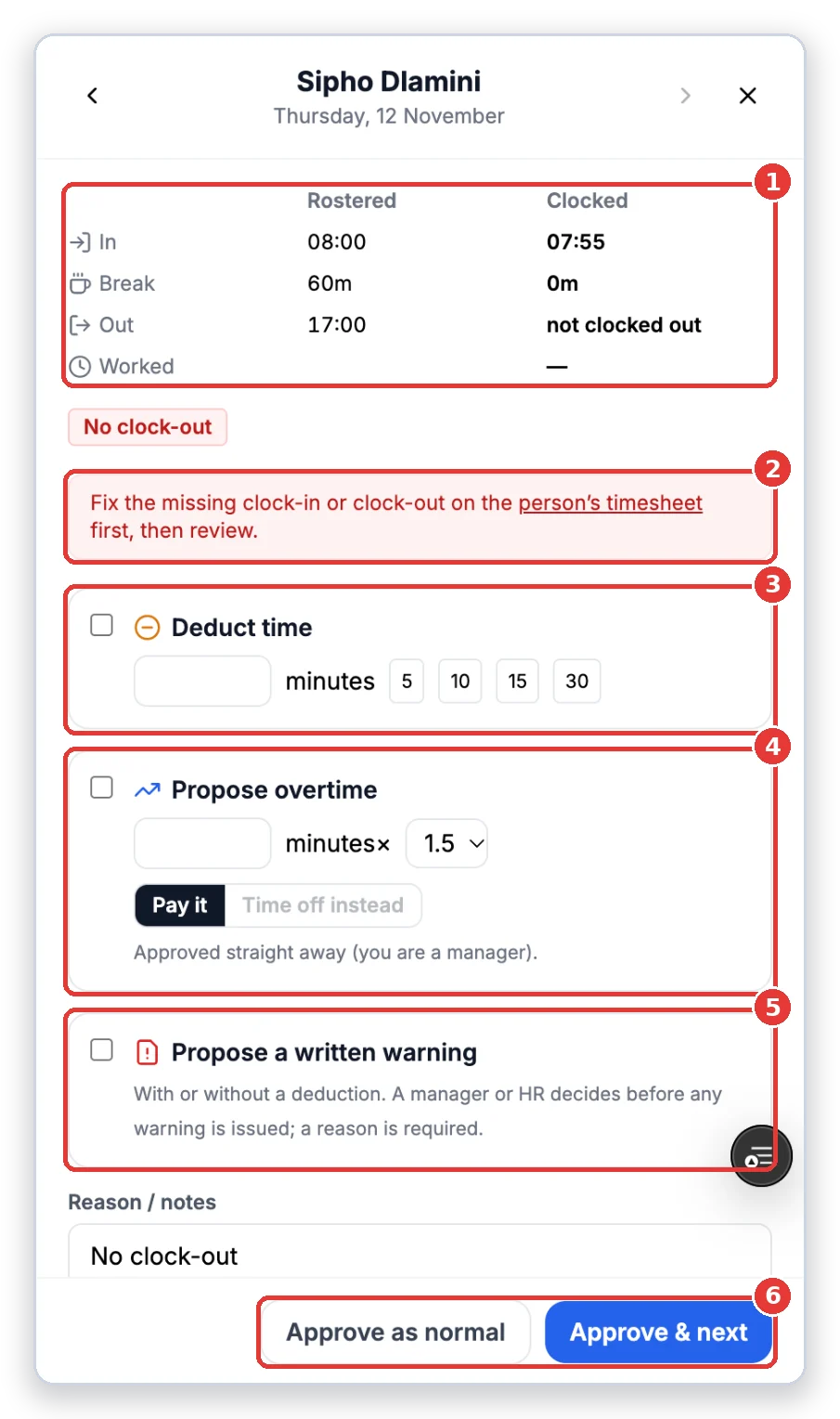
- 1Rostered vs clocked.
- 2A missing clocking — fix it on the timesheet first.
- 3Deduct time.
- 4Overtime — paid, or time off instead.
- 5A written warning (a manager or HR decides).
- 6Approve and go to the next person.
Important: Payroll uses the reviewed hours. Check overtime and deductions against your company’s rules and your employment contract — and with a labour professional if in doubt.
Need help?
Use the feedback button in the TimeTap side menu, or ask us — we’re happy to help you set it up.
More guides
Branches & clock-in QR codes
Add your branches, sites or locations. Each one gets its own QR code that staff scan to clock in and out.
Add employees
Add your staff, choose what they can do and send them the staff-app invite on WhatsApp.
Shifts & rosters
Set up your shift times once, then build the weekly roster. Staff see their shifts in the app and lateness is worked out from them.
Approve leave
See every leave request, check the balance and history, and approve, reject or change it.
Service certificates
How TimeTap creates and sends a service certificate by itself when a job is completed — and how to get a certificate for a service done before you used TimeTap.
Screens shown are from a demo company — names and numbers are made up. Your TimeTap shows your own company.