1Shift templates
- 1.Go to Attendance → Shifts → Shift Templates.
- 2.Click New shift and set the name, start and end time, break and the days it applies to.
- 3.Optionally link it to roles and mark a default per role — then the roster can fill itself in.
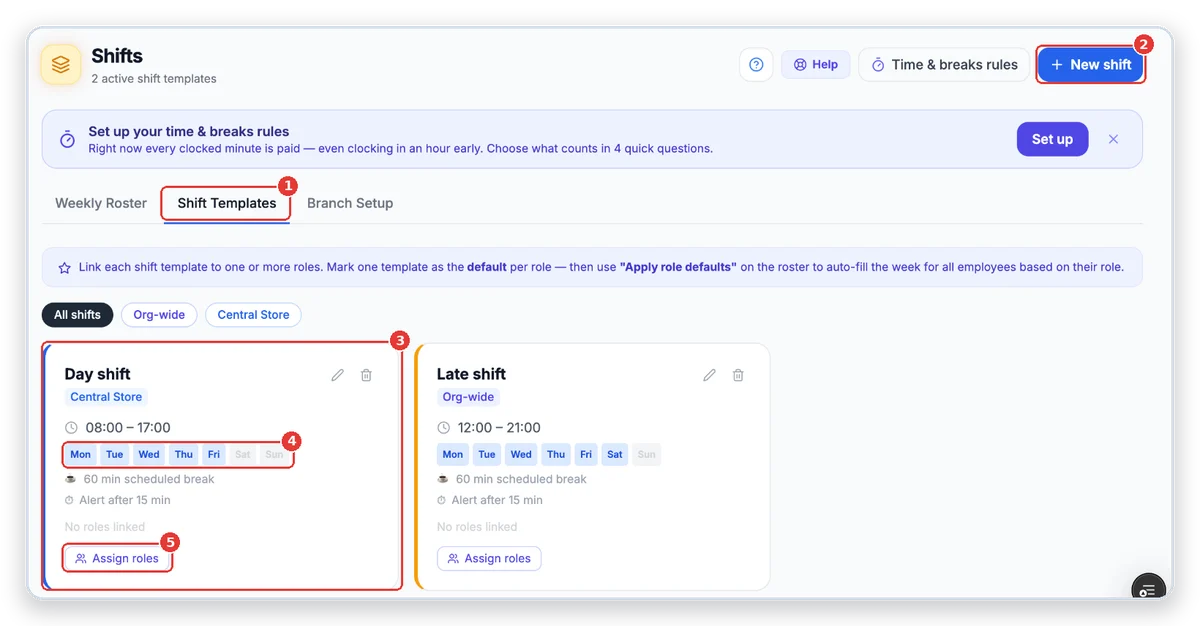
- 1Shift Templates tab.
- 2New shift.
- 3A shift: branch, times, days, break and late alert.
- 4The days it is used.
- 5Link it to roles.
2The weekly roster
- 1.Open the Weekly Roster tab and pick the week with the arrows.
- 2.Each row is a person, each column a day. Click an empty box (+ add) to give someone a shift.
- 3.Apply role defaults or Apply branch defaults fills the whole week in one click.
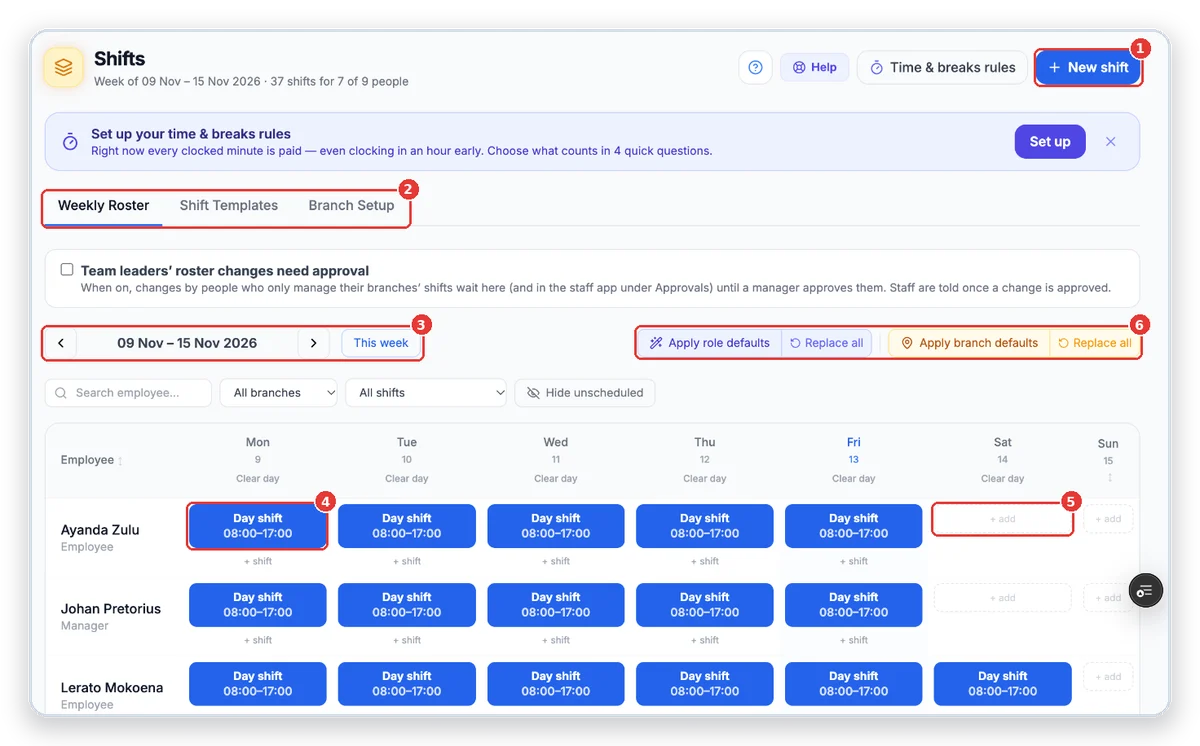
- 1New shift.
- 2Weekly Roster, Shift Templates and Branch Setup.
- 3Pick the week.
- 4A shift on the roster.
- 5Click + add to add a shift.
- 6Fill the week from role or branch defaults.
3Give someone a shift
- 1.Click the day for that person.
- 2.Pick the shift, or Off / Remove to take it away.
- 3.Click Confirm. The person sees it in the staff app.
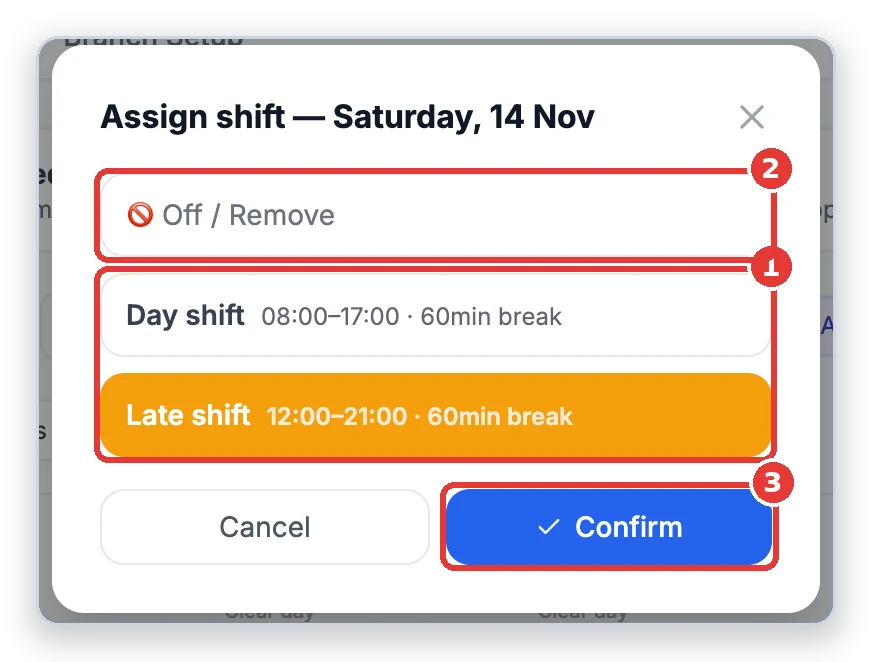
- 1Pick the shift.
- 2Off / remove.
- 3Confirm.
Tip: Want team leaders’ roster changes approved first? Tick Team leaders’ roster changes need approval above the roster.
Need help?
Use the feedback button in the TimeTap side menu, or ask us — we’re happy to help you set it up.
More guides
Branches & clock-in QR codes
Add your branches, sites or locations. Each one gets its own QR code that staff scan to clock in and out.
Add employees
Add your staff, choose what they can do and send them the staff-app invite on WhatsApp.
Who’s in & timesheet review
See who is at work right now, then check each day’s clockings and approve the hours for payroll.
Approve leave
See every leave request, check the balance and history, and approve, reject or change it.
Service certificates
How TimeTap creates and sends a service certificate by itself when a job is completed — and how to get a certificate for a service done before you used TimeTap.
Screens shown are from a demo company — names and numbers are made up. Your TimeTap shows your own company.