1Right now on your Home screen
- 1.Open the app — team leaders see a Right now card at the top of Home.
- 2.It shows how many of your people are In, On break, Late or Start later today.
- 3.Below it you see how many requests are waiting for your approval. Tap it to open Approvals.
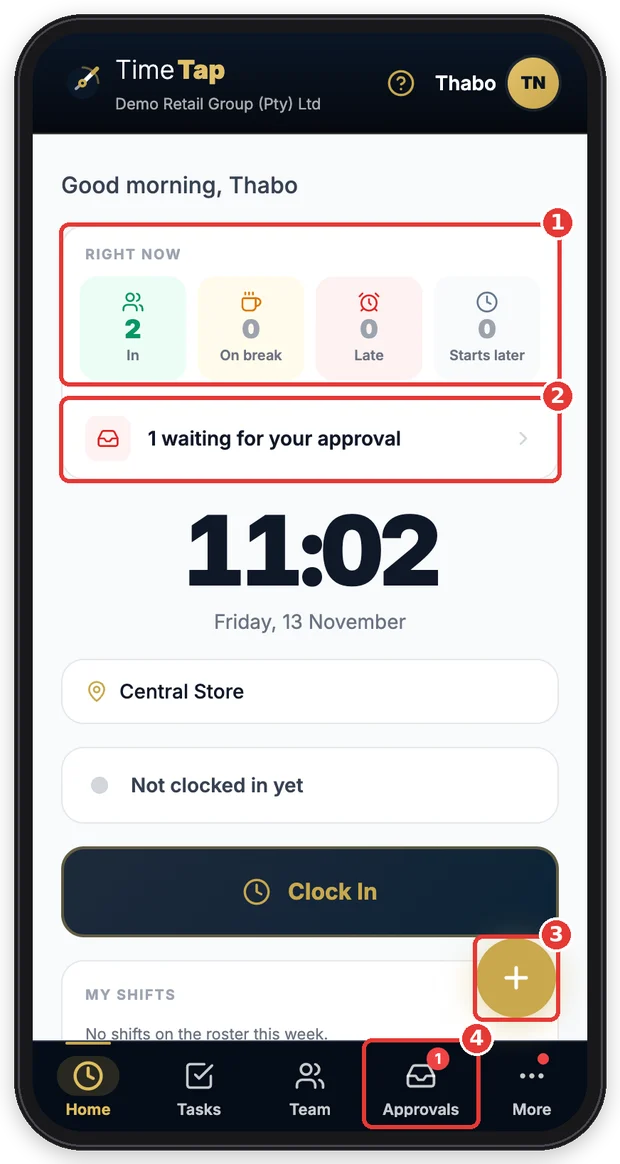
- 1Who is in, on break, late or still to start.
- 2Requests waiting for you.
- 3Quick-add button.
- 4Approvals.
2Your team
- 1.Tap Team in the bottom menu.
- 2.You see your team, how many are on shift and when each person clocked in.
- 3.If someone cannot clock themselves (flat phone, no signal), tap Clock in or Clock out next to their name. You can add a photo of them as proof.
- 4.Tap the refresh button to update the list.
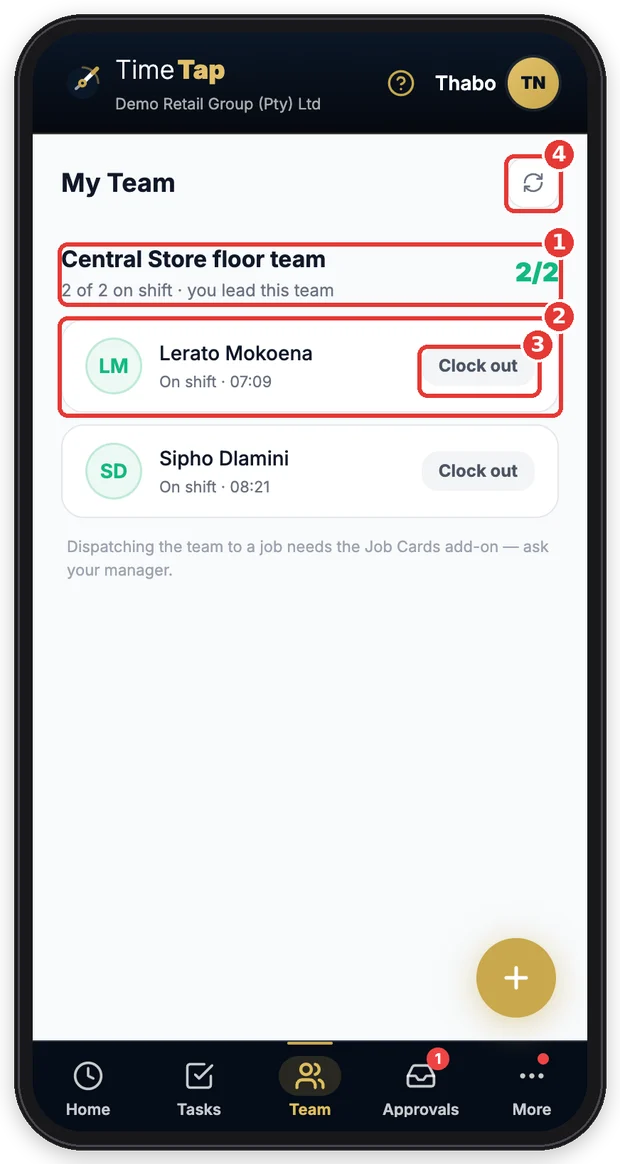
- 1Your team and how many are on shift.
- 2A team member and when they clocked in.
- 3Clock them in or out for them.
- 4Refresh.
Important: Only clock someone when they are really there with you. The clocking records your location and any photo you take.
Still stuck?
Ask your team leader or HR — they can see what TimeTap shows for you.
More guides
Getting started
Install the app, sign in, turn on notifications and fill in your details.
Clock in, clock out and breaks
Scan the QR code to clock in and out, record breaks, and fix a missed clock-out.
My shifts and timesheet
See when you work and check every clock-in, break and hours worked.
Apply for leave
Check your leave balance, apply for leave and follow the approval.
Sign HR documents
Read and sign your contract, policies and SOPs on your phone.
Job cards
Open your jobs, start work on site, fill in the checklist and get it signed off.
Tasks
See the tasks given to you, start them and mark them done — with a photo when one is needed.
Messages, profile & More
Find everything in the More menu, read company announcements, chat with the office and keep your details up to date.
Approve leave (team leaders)
For team leaders and managers: approve, decline or change leave requests from your phone.
Review timesheets (team leaders)
For team leaders and managers: check each day’s clockings, sort out problems and approve the hours.
Screens shown are from a demo company — names and numbers are made up. Your app shows your own company.