1Your route
- 1.Open More → Deliveries. My route shows today's stops in the order to drive them, each with its planned arrival time.
- 2.Tap Open the route in Maps to drive the whole day with Google Maps, or Map to see your stops on a map.
- 3.Tap Today to look at tomorrow. Finished stops move to Done at the bottom.
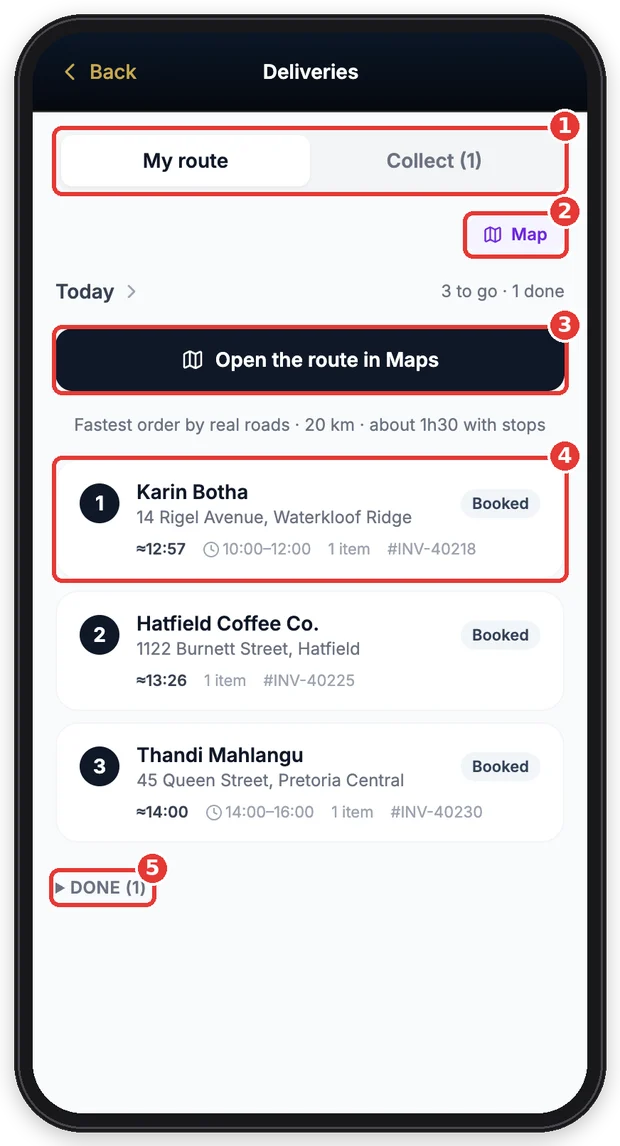
- 1My route and Collect (customers collecting at your branch).
- 2Your stops on a map.
- 3The whole day in Google Maps.
- 4A stop: planned arrival (≈), time window, items and slip number.
- 5Finished stops.
2At a stop
- 1.Tap a stop to open it. Call or WhatsApp the customer, or Navigate to the address. The office's notes are in yellow.
- 2.Leaving for the stop? Tap On my way and pick how long you'll be — the customer gets the time and their 4-digit code.
- 3.Can't deliver (no one home, wrong address…)? Tap Couldn't deliver and pick the reason — the customer gets a link to choose a new day. Tomorrow moves it to tomorrow.
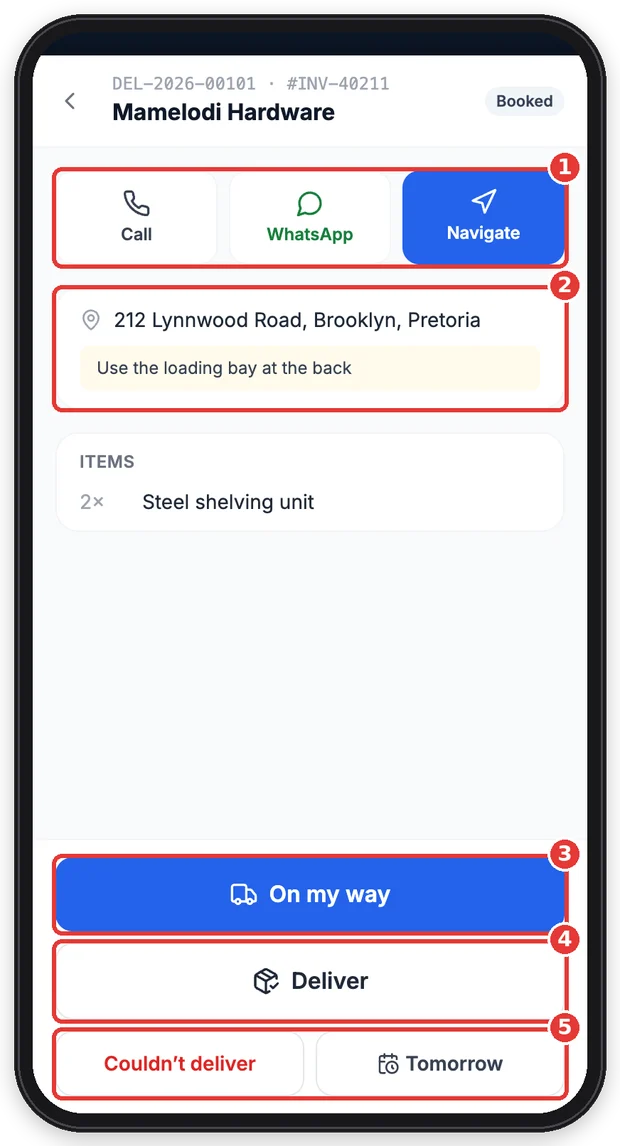
- 1Call, WhatsApp or navigate to the customer.
- 2Address and the office's notes.
- 3On my way — the customer gets the time.
- 4Deliver — start handing over.
- 5Couldn't deliver, or move to tomorrow.
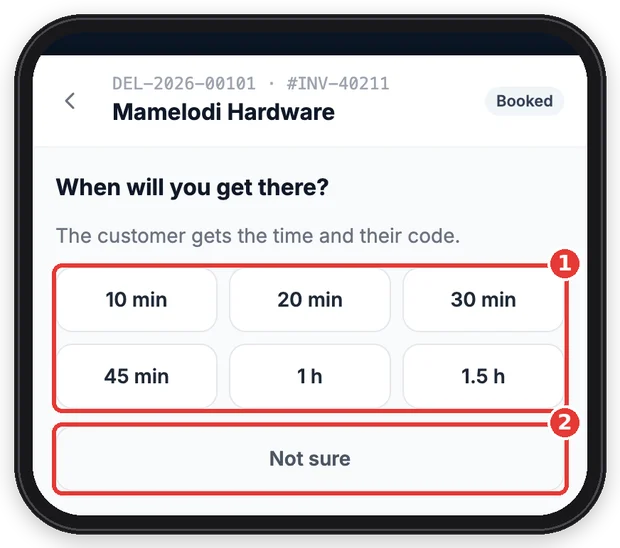
- 1How long until you get there.
- 2Not sure? Tap this.
3Handing over
- 1.Tap Deliver. Ask the customer for their 4-digit code and tap Check code. No code? Send a new code, or tap No code and say how you checked who received it — it shows on the proof and the office is told.
- 2.Everything is ticked OK. If something is damaged, short, missing or refused, tap that item and choose — then Next.
- 3.Type who received it, let them sign with a finger, take a photo of the goods and tap Confirm delivered. The proof of delivery (PDF) is made at once.
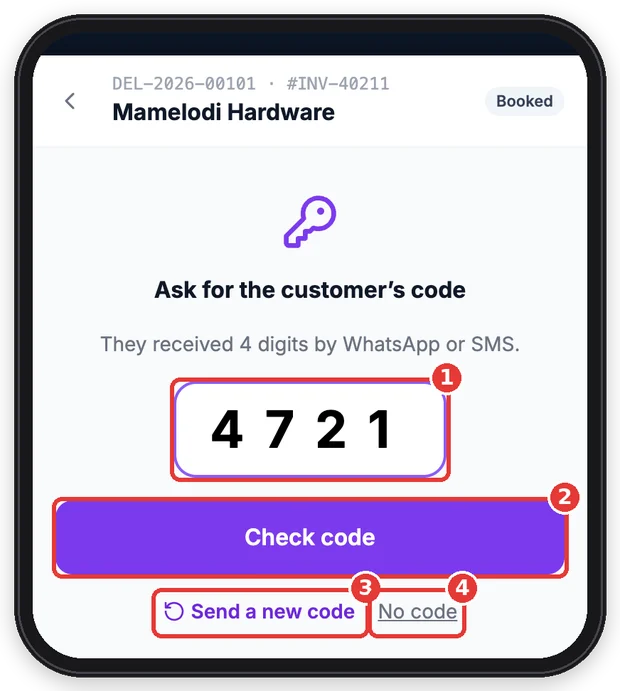
- 1The 4 digits the customer received.
- 2Check it.
- 3Send a new code.
- 4No code — give the reason.
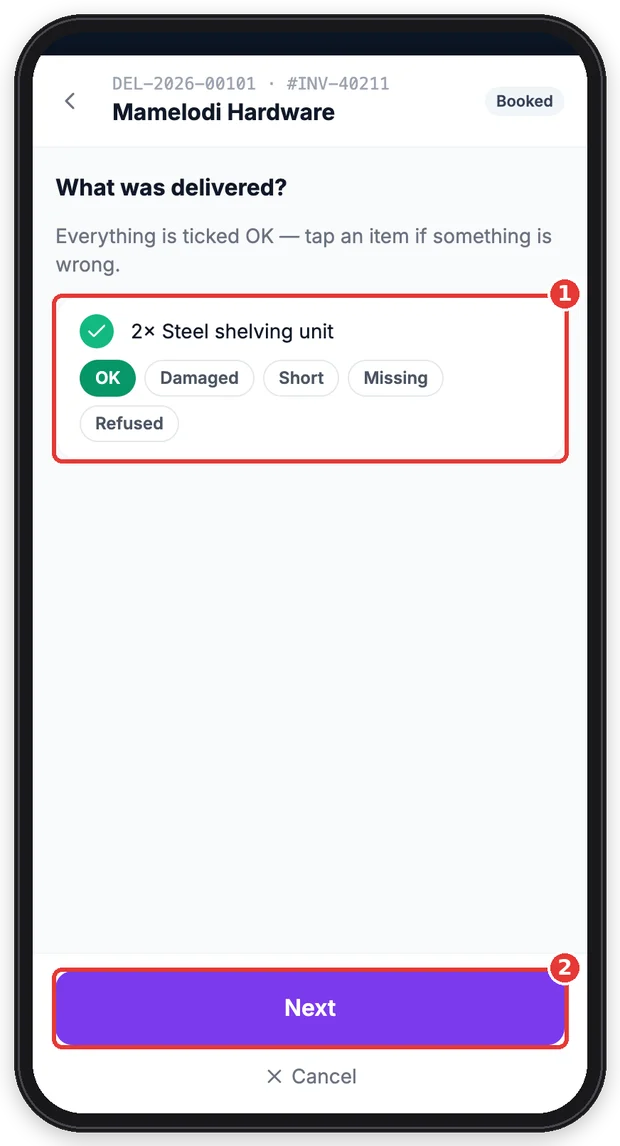
- 1Tap an item if something is wrong.
- 2Next step.
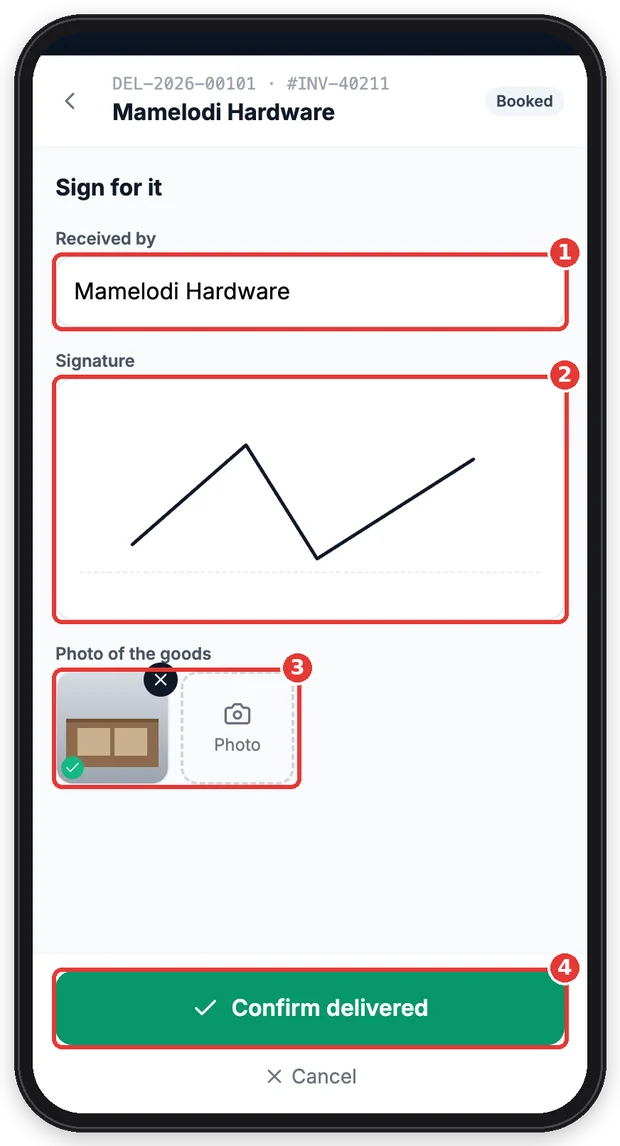
- 1Who received it.
- 2The customer signs here.
- 3Photo of the goods.
- 4Done.
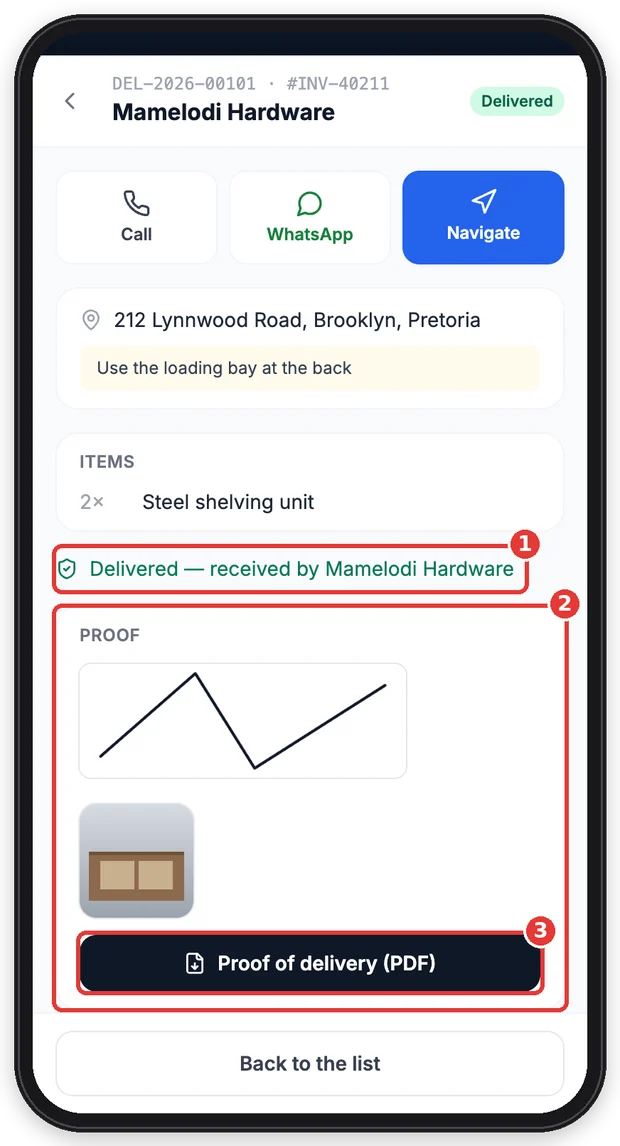
- 1Delivered and who received it.
- 2Signature and photos.
- 3The proof of delivery PDF.
Tip: No signal? Carry on — everything is saved on the phone and sent with the real time when the signal is back.
4Collections at the branch
- 1.Collect lists customers who still have to collect at your branch. Search by name, phone or slip number.
- 2.Open one, check the customer's code, tick what was handed over and let them sign — the same as a delivery.
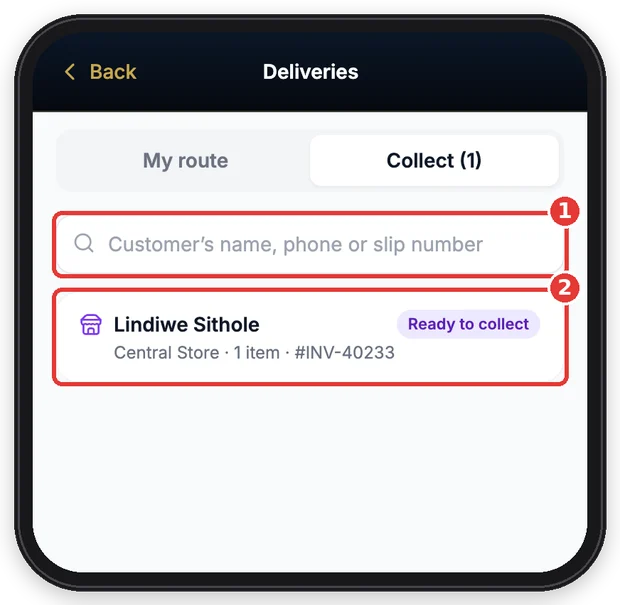
- 1Find the customer.
- 2Tap to hand over.
5Office: everyone and booking
- 1.Owners and managers (and anyone with Delivery Manager access) see Everyone — every delivery of the day per driver, as a list or on the map.
- 2.Tap New delivery or New collection to book one from the phone: customer, cellphone, the address picked from the list (or Where I am), items or the slip number, the day, time window and driver. Tell the customer sends them the booking with their tracking link.
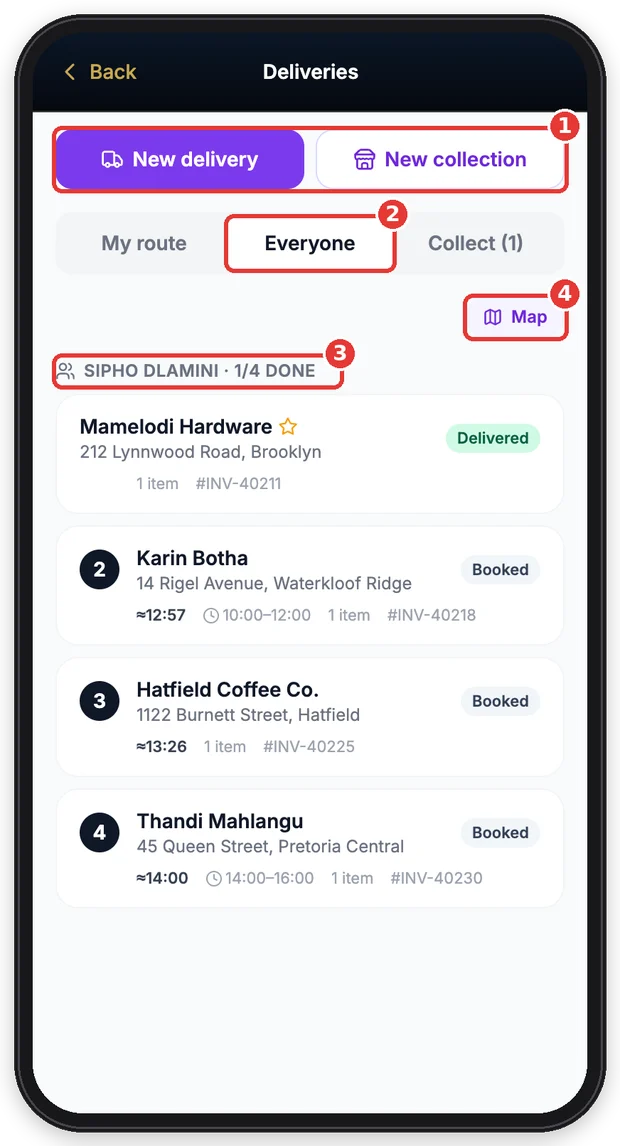
- 1Book a delivery or a collection.
- 2Every driver's day.
- 3Per driver: how many are done.
- 4All drivers on the map.
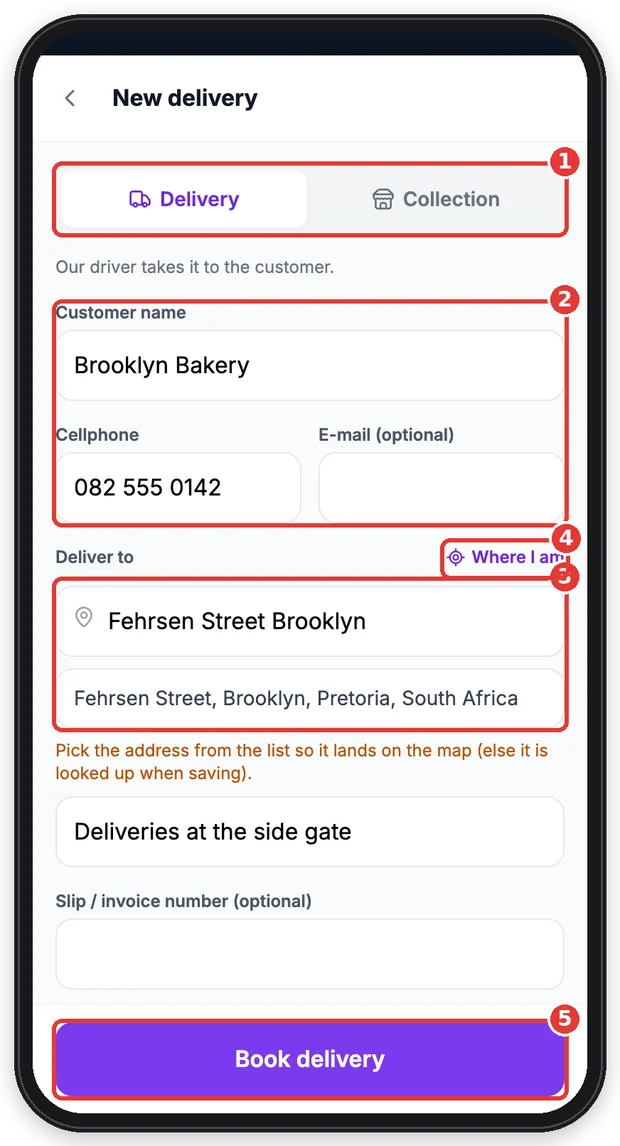
- 1Delivery or collection.
- 2Customer and cellphone.
- 3Pick the address from the list so it is on the map.
- 4Or use where you are now.
- 5Book it.
Still stuck?
Ask your team leader or HR — they can see what TimeTap shows for you.
More guides
Getting started
Install the app, sign in, turn on notifications and fill in your details.
Clock in, clock out and breaks
Scan the QR code to clock in and out, record breaks, and fix a missed clock-out.
My shifts and timesheet
See when you work and check every clock-in, break and hours worked.
Apply for leave
Check your leave balance, apply for leave and follow the approval.
Sign HR documents
Read and sign your contract, policies and SOPs on your phone.
Job cards
Open your jobs, start work on site, fill in the checklist and get it signed off.
Expenses
Snap a till slip, let it fill itself in, and send it for approval — plus approving other people's expenses if you're a manager.
Invoices & quotes
See what is owing, make an invoice or a quote on the spot, send it by e-mail or WhatsApp and record the payment — from your phone.
Tasks
See the tasks given to you, start them and mark them done — with a photo when one is needed.
Messages, profile & More
Find everything in the More menu, read company announcements, chat with the office and keep your details up to date.
Approve leave (team leaders)
For team leaders and managers: approve, decline or change leave requests from your phone.
Review timesheets (team leaders)
For team leaders and managers: check each day’s clockings, sort out problems and approve the hours.
My team (team leaders)
For team leaders: see who is working right now and clock a team member in or out when they cannot.
Screens shown are from a demo company — names and numbers are made up. Your app shows your own company.