1What is owing
- 1.Open More → Invoices & quotes. You see it if your company has Invoicing & Quotes and you are an owner, admin or manager — or your access allows invoicing.
- 2.At the top: Owing to you (all open invoices) and Overdue (past their due date). Tap either to see those invoices.
- 3.Use Open · Overdue · Drafts · Paid · All and the search box (number, title or client) to find an invoice. Tap one to open it.
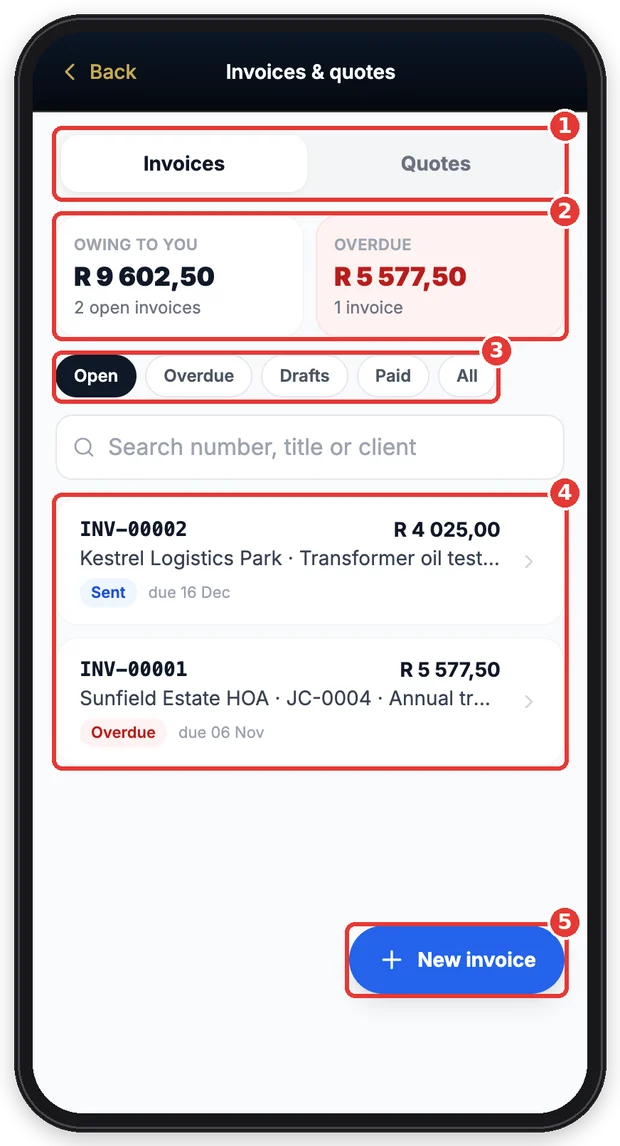
- 1Invoices or quotes.
- 2What is owing, and what is overdue.
- 3Filter the list.
- 4Your invoices with their status and due date.
- 5Make a new one.
2Make an invoice or a quote
- 1.Tap New invoice (or New quote on the Quotes tab).
- 2.Under Who is it for? search your clients and tap one — or type a name if it is not a saved client.
- 3.Give it a title, then add the lines: what for, quantity and price. Pick a saved item fills in one of your saved products or services. + Add a line for more.
- 4.Tap Create invoice — then send it. The number, VAT and terms come from your company settings.
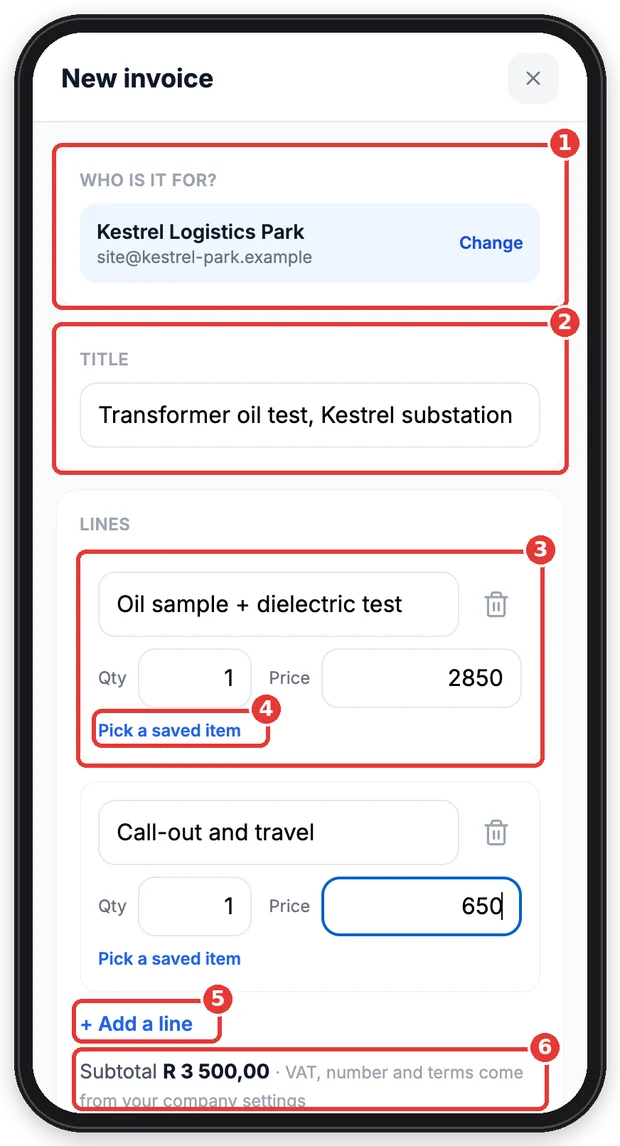
- 1Pick the client.
- 2A short title.
- 3A line: what for, quantity and price.
- 4Or pick one of your saved items.
- 5Add more lines.
- 6Subtotal — VAT is added from your settings.
Tip: Finished a job? Open the job — a finished job has an Invoice card that fills in the labour, parts and costs from the job for you.
3Send it
- 1.A new invoice shows Draft — not sent with its lines and total.
- 2.Under Send this invoice: check the e-mail address and tap E-mail, tap WhatsApp to send the link from your own WhatsApp (when the client has a cellphone number), or Share link to send it any other way.
- 3.The client opens the link, sees the invoice, can save it as a PDF — and pay online if your company has set that up. See it as the client sees it shows you the same page.
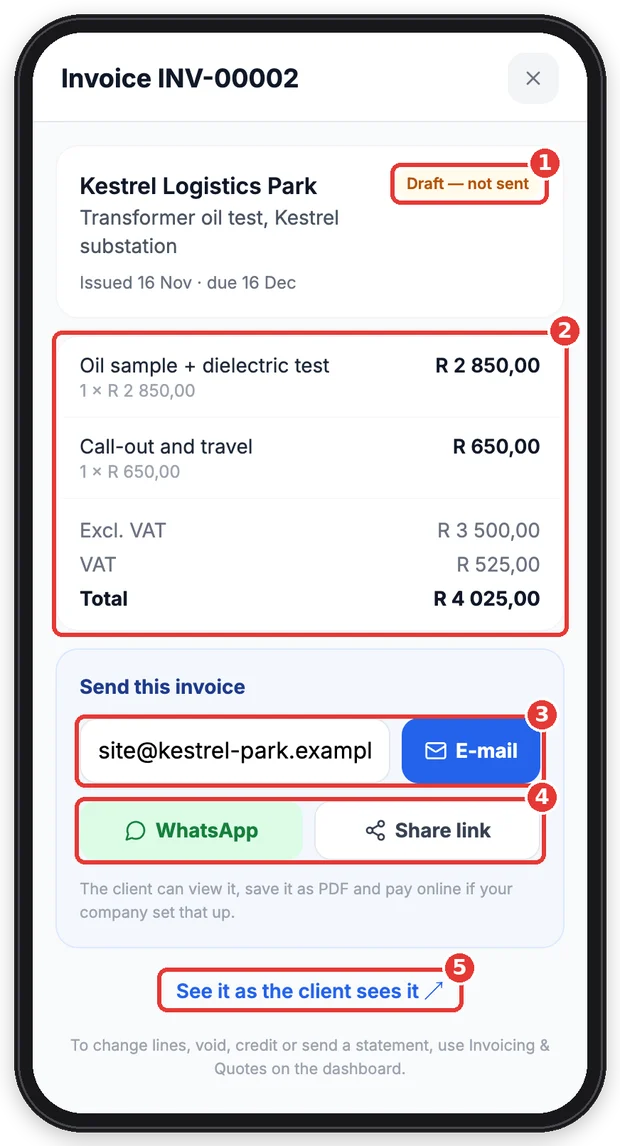
- 1Not sent yet.
- 2The lines and the total with VAT.
- 3E-mail it to the client.
- 4Or send the link by WhatsApp or any other app.
- 5See what the client sees.
4Money received
- 1.Open the invoice and tap Record a payment.
- 2.The amount still owing is filled in — change it if they paid part. Choose how they paid (EFT, cash, card…) and add a reference if you like.
- 3.Tap Record. The invoice moves to Part paid or Paid, and the payment shows on it.
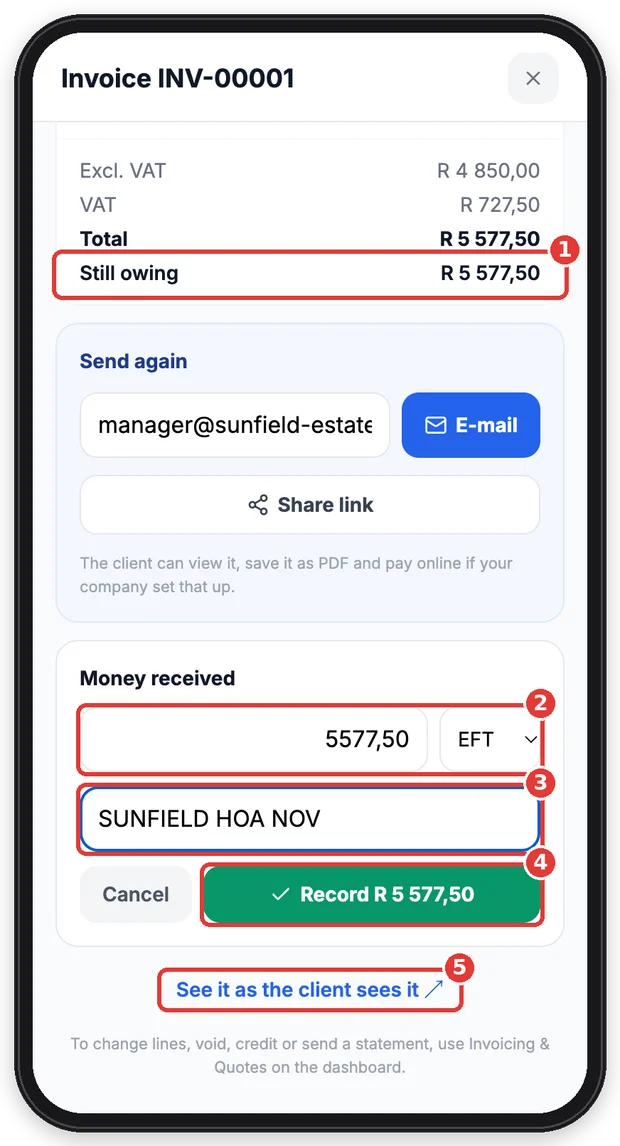
- 1What is still owing.
- 2The amount and how they paid.
- 3A reference (optional).
- 4Record it.
- 5See what the client sees.
5Quotes
- 1.Make a quote the same way on the Quotes tab and send it. The client can approve it from the link.
- 2.Approved quotes show in a green bar at the top: … approved quote — ready to turn into an invoice.
- 3.Open the approved quote and tap Turn into an invoice — the invoice opens, ready to send.
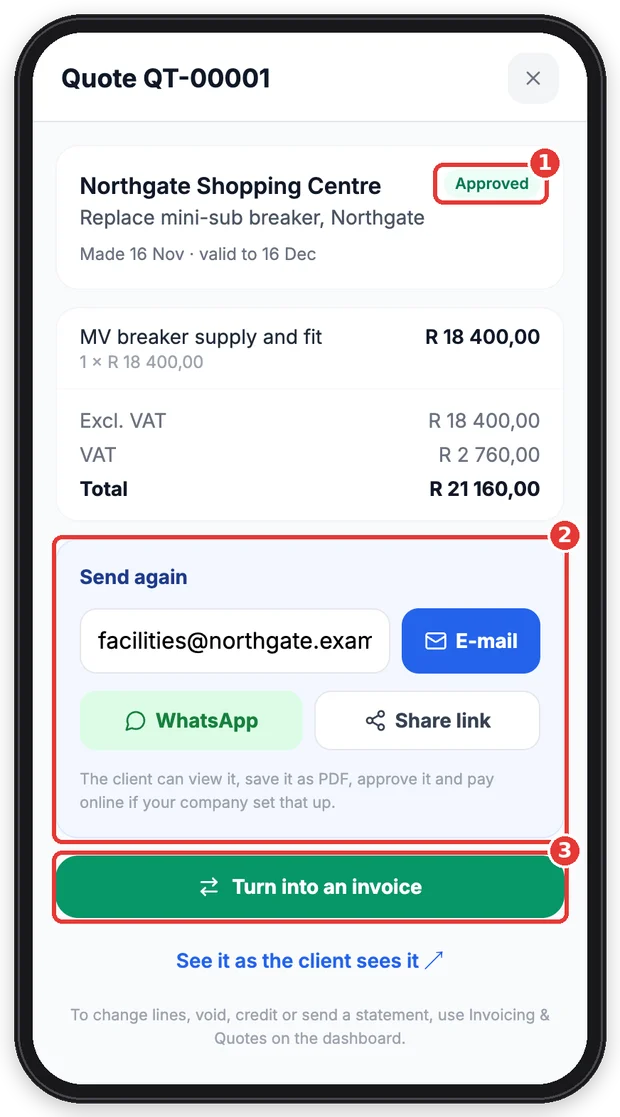
- 1The client approved it.
- 2Send it again if needed.
- 3Make the invoice from it.
Tip: To change lines on an invoice that was already sent, void it, give a credit or send a statement, use Invoicing & Quotes on the dashboard.
Still stuck?
Ask your team leader or HR — they can see what TimeTap shows for you.
More guides
Getting started
Install the app, sign in, turn on notifications and fill in your details.
Clock in, clock out and breaks
Scan the QR code to clock in and out, record breaks, and fix a missed clock-out.
My shifts and timesheet
See when you work and check every clock-in, break and hours worked.
Apply for leave
Check your leave balance, apply for leave and follow the approval.
Sign HR documents
Read and sign your contract, policies and SOPs on your phone.
Job cards
Open your jobs, start work on site, fill in the checklist and get it signed off.
Deliveries
Your route for the day, the customer's code, signing for the goods — and booking deliveries if you run the office.
Expenses
Snap a till slip, let it fill itself in, and send it for approval — plus approving other people's expenses if you're a manager.
Tasks
See the tasks given to you, start them and mark them done — with a photo when one is needed.
Messages, profile & More
Find everything in the More menu, read company announcements, chat with the office and keep your details up to date.
Approve leave (team leaders)
For team leaders and managers: approve, decline or change leave requests from your phone.
Review timesheets (team leaders)
For team leaders and managers: check each day’s clockings, sort out problems and approve the hours.
My team (team leaders)
For team leaders: see who is working right now and clock a team member in or out when they cannot.
Screens shown are from a demo company — names and numbers are made up. Your app shows your own company.