1What you can spend
- 1.Open More → Expenses. At the top is Snap a slip — the quickest way to claim anything you bought.
- 2.What you can spend shows your limits: how much you may spend at a time, how much of this month's amount is used and what is left. A petty-cash float you look after shows how much is in it.
- 3.My expenses lists everything you sent in with its status: Waiting, Question asked, Approved, Not approved or Paid back. While it waits, it shows who it is waiting for.
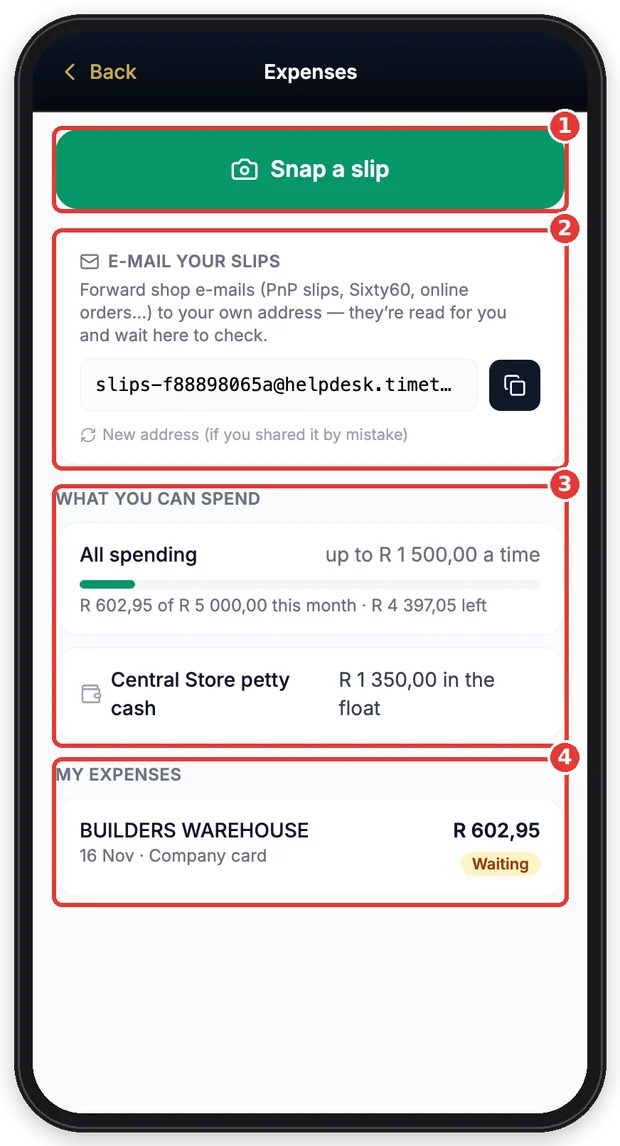
- 1Snap a slip to claim something you bought.
- 2Your own address for e-mailed slips (online orders, app slips).
- 3Your limits and petty-cash float.
- 4Everything you sent in, with its status.
Tip: No limits showing? Then none are set for you — ask your manager before you spend company money.
2Snap a slip
- 1.Tap Snap a slip and take a photo of the till slip.
- 2.The slip is read for you: the amount, date, shop and branch fill in by themselves — Filled in by AI — please check. Fix anything that is wrong.
- 3.Choose How did you pay? — the company card, a petty-cash float, or Own money if you must be paid back.
- 4.Choose What was it for?, link it to a job or client if it was for one, add a short note, and tap Send for approval.
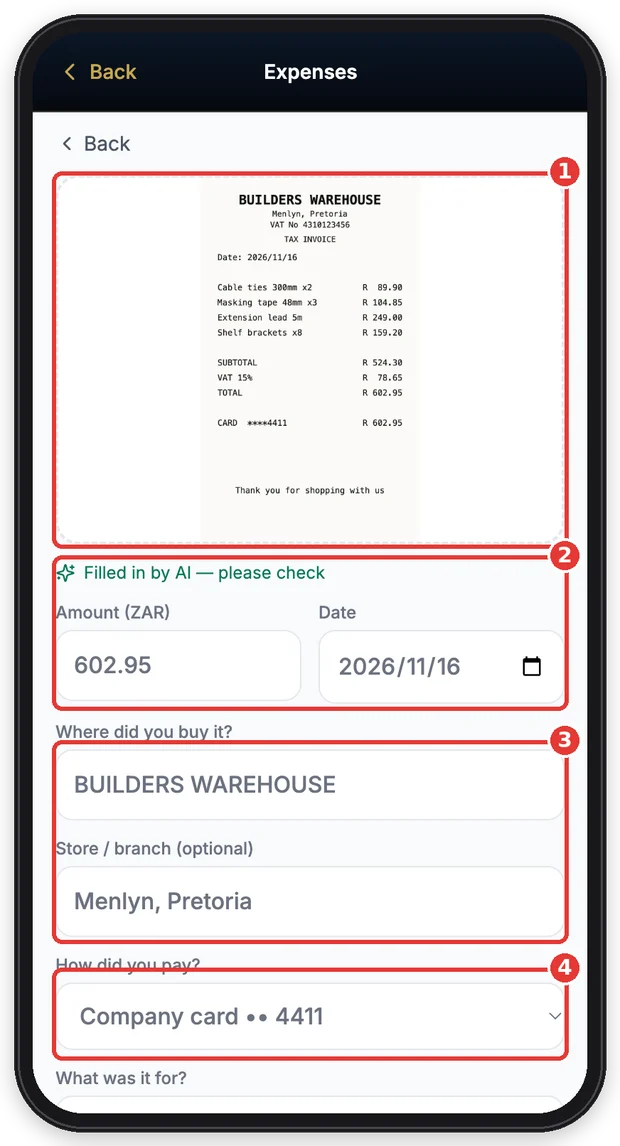
- 1Your photo of the slip.
- 2Amount and date read from the slip — check them.
- 3The shop and branch.
- 4How you paid.
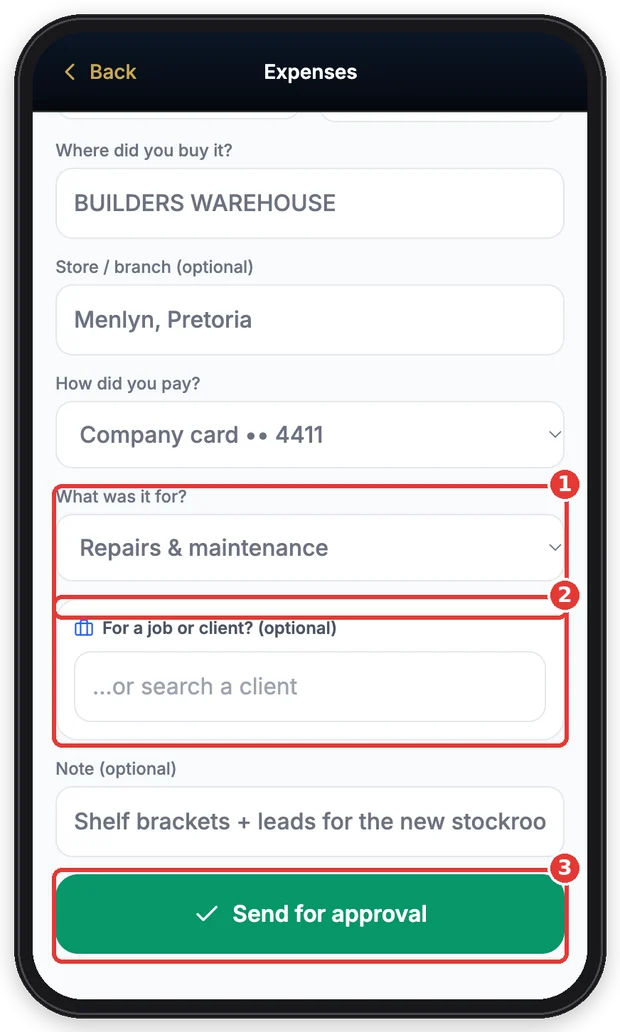
- 1What it was for.
- 2A job or client, if it was for one.
- 3Send it for approval.
Important: Keep the paper slip until the expense is approved. A slip that looks like one already claimed, no slip, or an amount over your limit is flagged for the approver to see.
3E-mailed slips
- 1.Online orders and app slips arrive by e-mail. Forward them to the address under E-mail your slips — it is yours alone.
- 2.They show at the top under E-mailed slips to check. Tap Check, fix anything that is wrong and send it like any other slip.
- 3.Shared the address by mistake? Tap New address — the old one stops working.
4A question or a no
- 1.If the approver has a question, the expense shows Question asked with their question. Type your answer and tap Send — it goes back for approval.
- 2.If it was Not approved, the reason shows under it.
- 3.When the money is paid back to you, it shows Paid back.
5Approving (managers)
- 1.When expenses wait for you, a yellow bar shows … waiting for your approval on the Expenses screen. You also get a notification, and they are in Approvals with your other approvals. Tap Open.
- 2.Tap an expense to see the amount, who spent it, the note and the photo of the slip (tap the photo to see it full size).
- 3.Tap Approve, or type a comment and tap Ask (a question back to them) or Decline. A comment is needed to ask or decline.
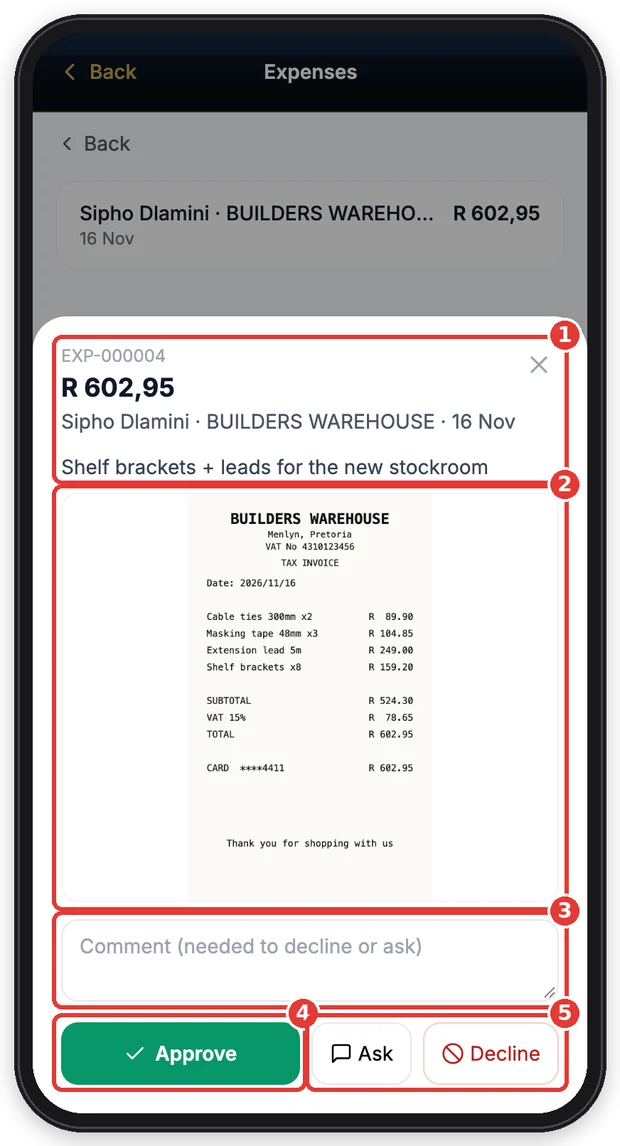
- 1The amount, who spent it, where and when.
- 2The slip — tap to open it full size.
- 3Your comment (needed to ask or decline).
- 4Approve it.
- 5Ask a question, or decline.
Tip: You cannot approve your own expenses — they go to the next approver. Only when there is nobody else (you are the only owner or admin) may you approve your own.
Still stuck?
Ask your team leader or HR — they can see what TimeTap shows for you.
More guides
Getting started
Install the app, sign in, turn on notifications and fill in your details.
Clock in, clock out and breaks
Scan the QR code to clock in and out, record breaks, and fix a missed clock-out.
My shifts and timesheet
See when you work and check every clock-in, break and hours worked.
Apply for leave
Check your leave balance, apply for leave and follow the approval.
Sign HR documents
Read and sign your contract, policies and SOPs on your phone.
Job cards
Open your jobs, start work on site, fill in the checklist and get it signed off.
Deliveries
Your route for the day, the customer's code, signing for the goods — and booking deliveries if you run the office.
Invoices & quotes
See what is owing, make an invoice or a quote on the spot, send it by e-mail or WhatsApp and record the payment — from your phone.
Tasks
See the tasks given to you, start them and mark them done — with a photo when one is needed.
Messages, profile & More
Find everything in the More menu, read company announcements, chat with the office and keep your details up to date.
Approve leave (team leaders)
For team leaders and managers: approve, decline or change leave requests from your phone.
Review timesheets (team leaders)
For team leaders and managers: check each day’s clockings, sort out problems and approve the hours.
My team (team leaders)
For team leaders: see who is working right now and clock a team member in or out when they cannot.
Screens shown are from a demo company — names and numbers are made up. Your app shows your own company.