Prove every pay station and gate was checked today

TimeTap gives each guard a daily check for every payment terminal they look after. They scan the QR label on the terminal, fill in a short checklist with a photo on their phone, and the office sees what is done and what is not — with the name, time and place of every check.

Screens below are real TimeTap screens from CityPark Parking (a demo company) — names and numbers are made up.

The whole flow in 9 steps

  1. STEP 1

    Register every terminal as an asset

    Office

  2. STEP 2

    Stick a QR label on each terminal

    Office

  3. STEP 3

    Build the terminal checklist

    Office

  4. STEP 4

    Set up the daily round once

    Office

  5. STEP 5

    The guard's checks are on their phone

    Guard

  6. STEP 6

    Check the terminal and fill in the checklist

    Guard

  7. STEP 7

    Mark the check as done

    Guard

  8. STEP 8

    Supervisors see what is not done yet

    Supervisor

  9. STEP 9

    The office has the proof

    Office

STEP 1 · OFFICE

Register every terminal as an asset

Where: Asset Manager → Add Asset

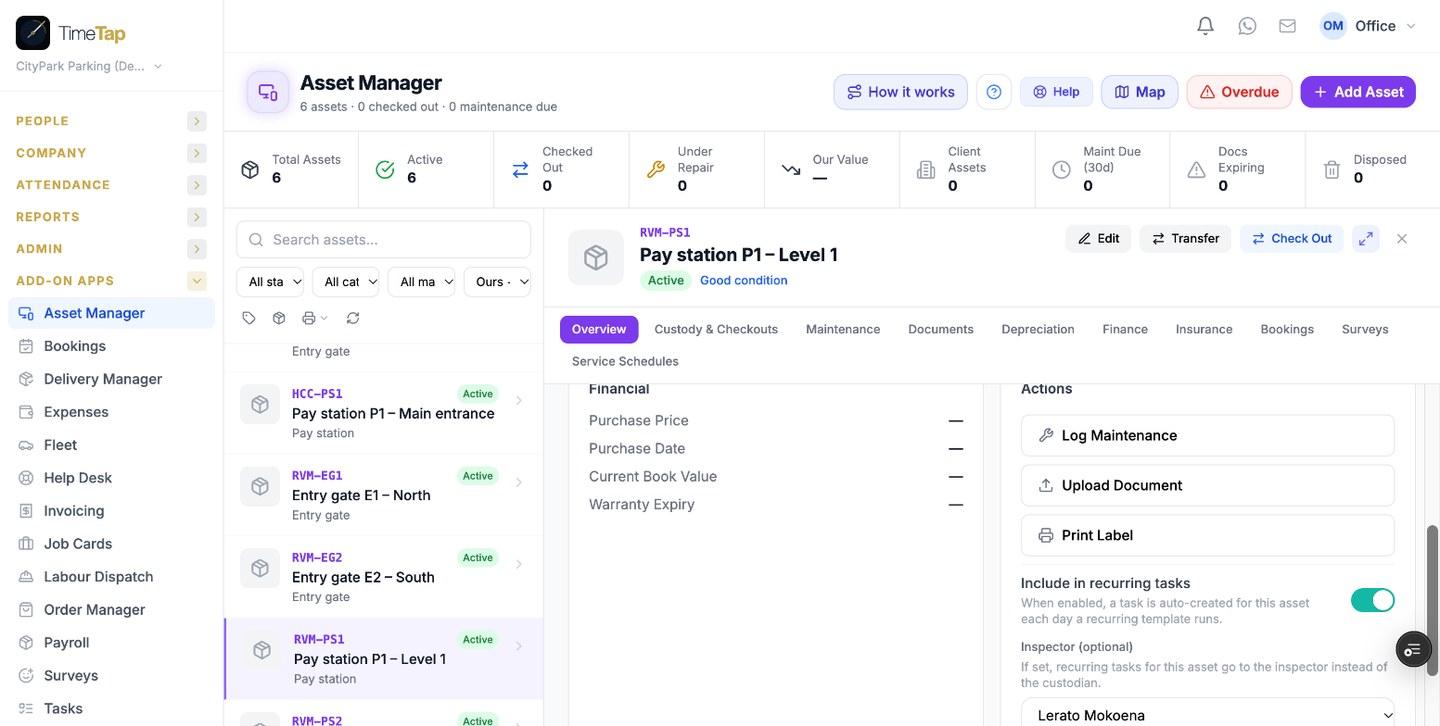
Each pay station and entry or exit gate is an asset with its own tag (for example RVM-PS1), linked to the site where it stands. Open the terminal and switch on Include in recurring tasks, then pick the Inspector — the guard who checks it every day.

  • Asset tag — short and printed on the label, so guards and supervisors talk about the same terminal.
  • Branch — the site or parkade; tasks and reports can be filtered by it.
  • Inspector — the daily task for this terminal goes to this person. Change it when the roster changes.
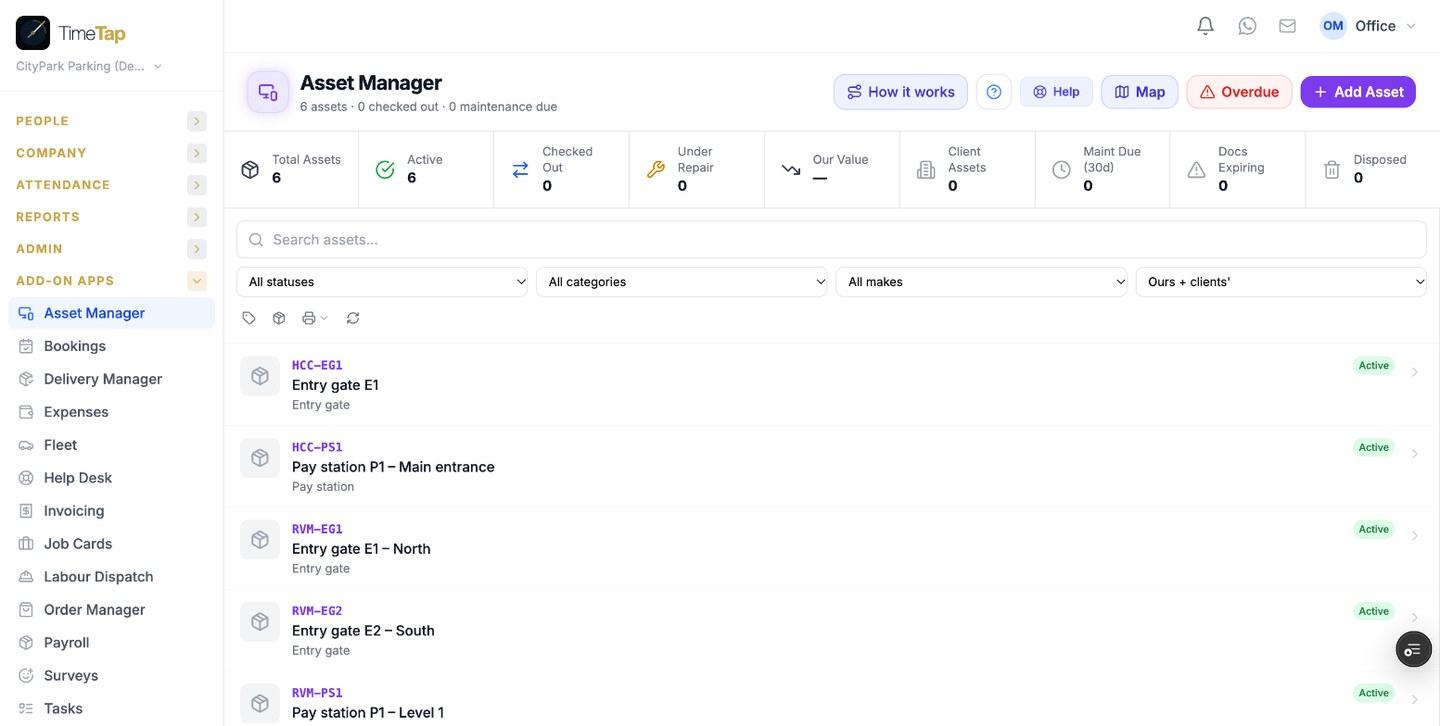
The asset register: every pay station and gate across the sites
A terminal with Include in recurring tasks on and its inspector

STEP 2 · OFFICE

Stick a QR label on each terminal

Where: Asset → Print Label

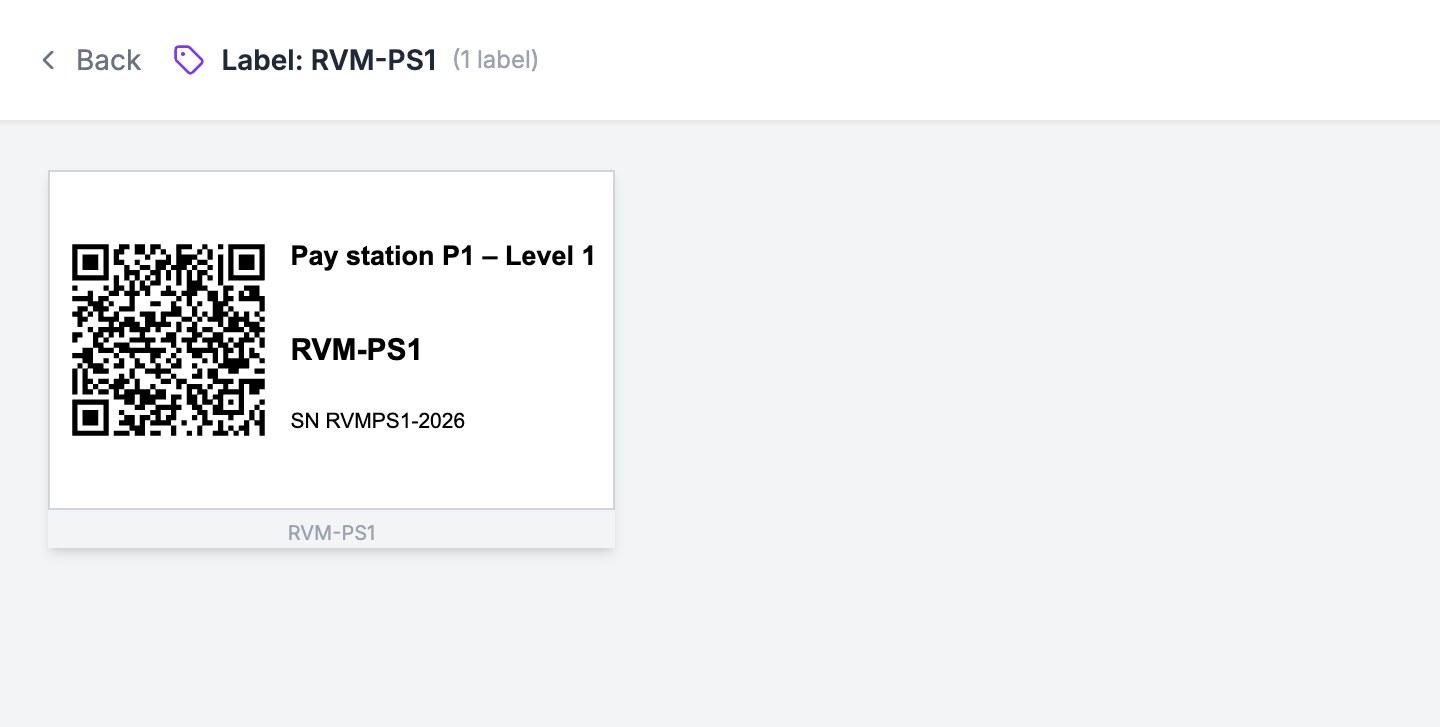
Print a label for one terminal or all of them at once and stick it on the unit. The QR code opens that terminal in the TimeTap staff app.

When the guard who scans it has an open check for that terminal, the scan takes them straight to the task. Anyone else sees the terminal's record with To do on this asset — who has to check it and whether it is done.

  • The label shows the name, tag and serial number — handy when you phone the terminal supplier.
A 50 × 30 mm label: QR code, terminal name, tag and serial number

STEP 3 · OFFICE

Build the terminal checklist

Where: Surveys → New survey

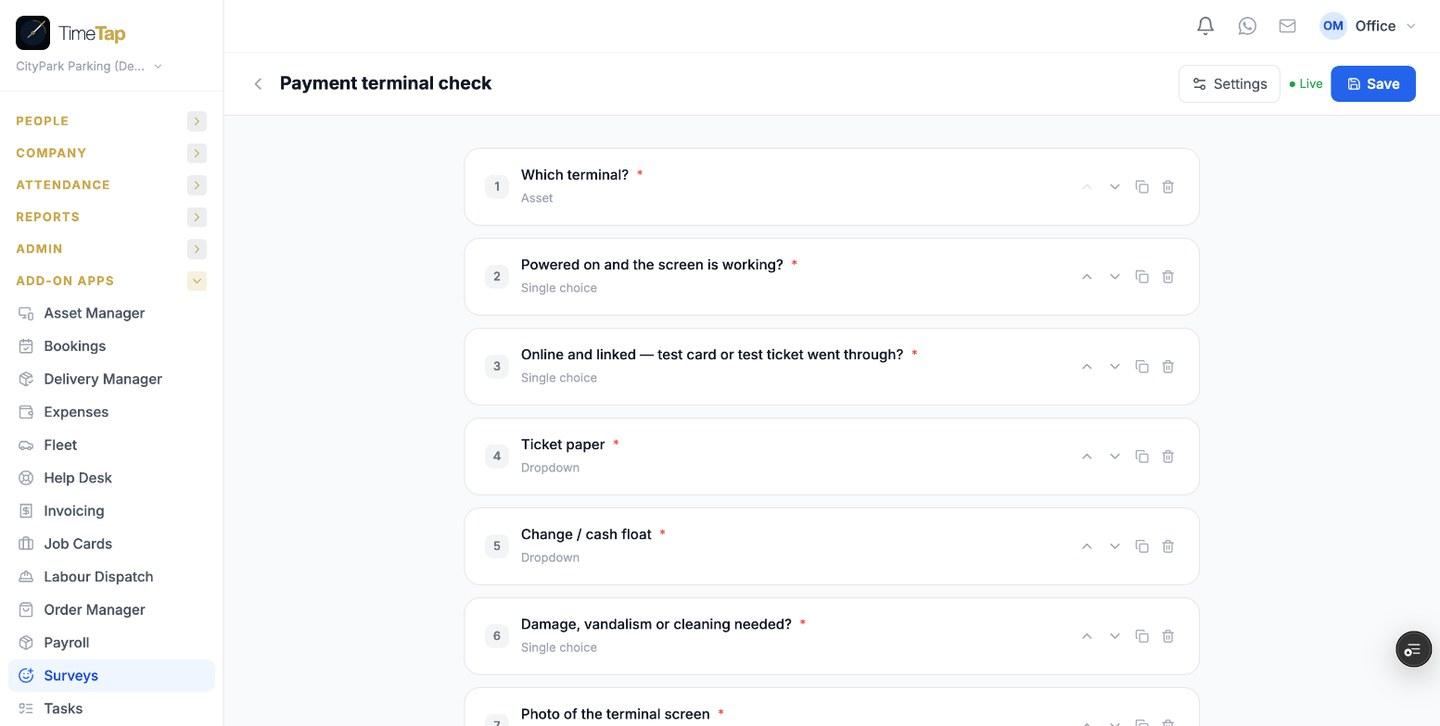
The checklist is a short form the guard fills in on the phone. Start with a Which terminal? question (type Asset) — it is filled in for the guard when they open it from the terminal's task. Then add what you need to know: yes/no questions, dropdowns, a required photo and a notes box.

  • Make questions required so a check can't be sent half done.
  • Change the checklist any time — new rounds use the new version.
The Payment terminal check: 8 questions, including a required photo

STEP 4 · OFFICE

Set up the daily round once

Where: Tasks → Recurring → New task

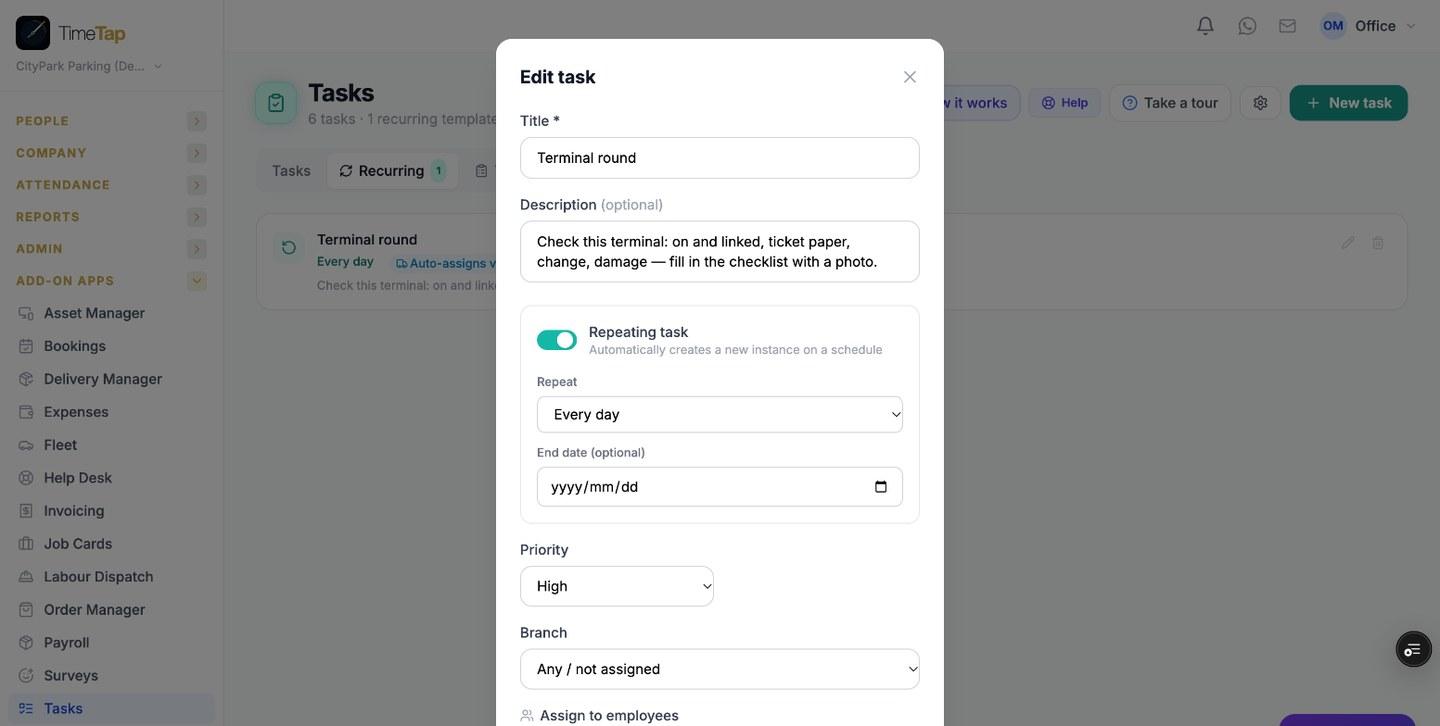
Create one recurring task — for example Terminal round, every day, priority High — and link the checklist to it. Every morning TimeTap makes one task per terminal that has Include in recurring tasks on, named after the terminal and assigned to its inspector.

  • Six terminals = six tasks a day, without anyone typing them.
  • Add a terminal tomorrow and it is in the next morning's round.
The Terminal round: repeats every day and creates a task per terminal

STEP 5 · GUARD

The guard's checks are on their phone

Where: Staff app → Tasks

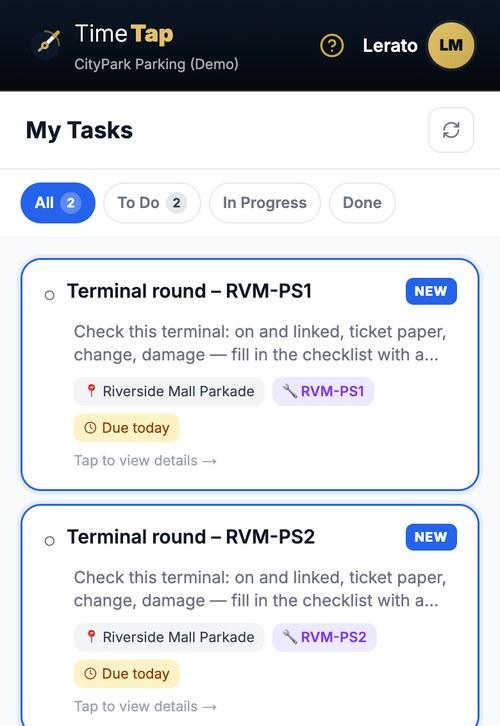
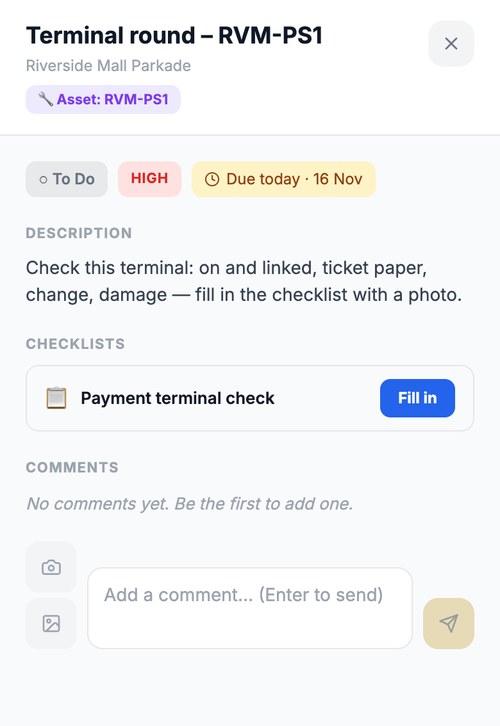
Each guard sees only their own terminals under My Tasks, with the site, the terminal tag and Due today. The number on the Tasks button shows how many are still open.

Lerato's checks for today
One terminal's task, with the checklist to fill in

STEP 6 · GUARD

Check the terminal and fill in the checklist

Where: Task → Fill in

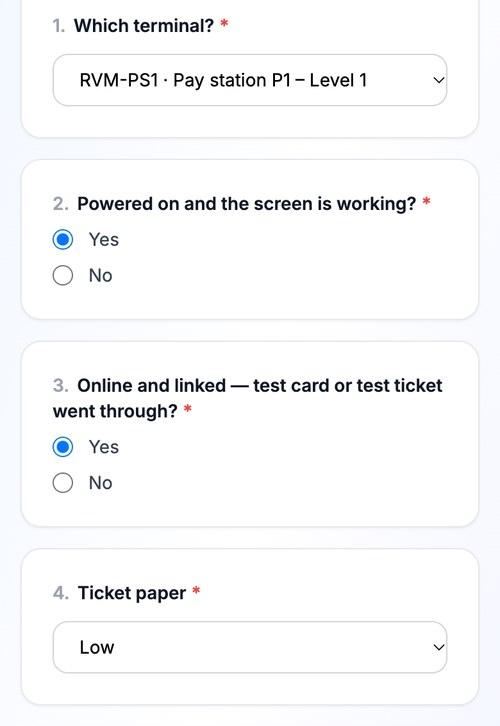
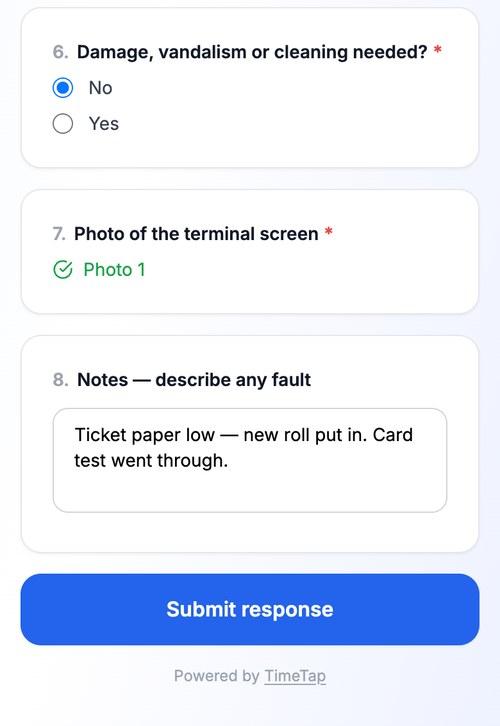
At the terminal the guard scans the label (or opens the task) and taps Fill in. The terminal is already selected. They answer the questions, take a photo of the screen, add a note if something is wrong and submit.

  • The answers are saved on the task — Back to the task takes the guard back to mark it done.
The checklist on the phone — the terminal is already picked
Required photo and notes, then Submit

STEP 7 · GUARD

Mark the check as done

Where: Task → Mark as Done

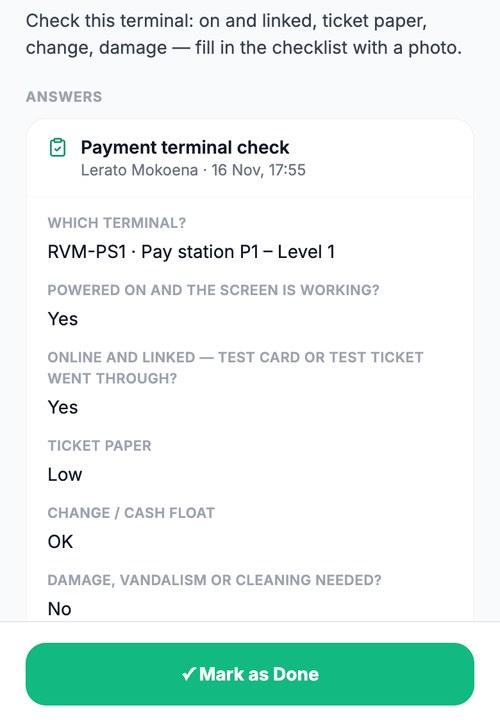
Back on the task the answers are shown under Answers. Mark as Done closes the check; TimeTap records who did it, when, and — on a phone with location on — where.

The answers on the task, then Mark as Done

STEP 8 · SUPERVISOR

Supervisors see what is not done yet

Where: Staff app → Inspections & checks

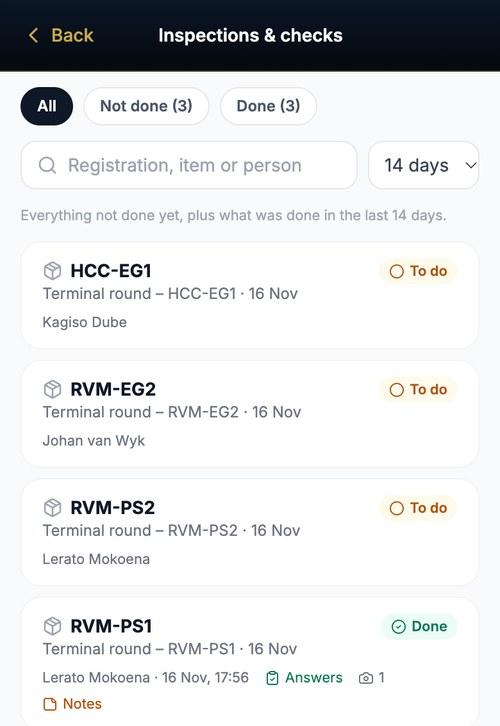
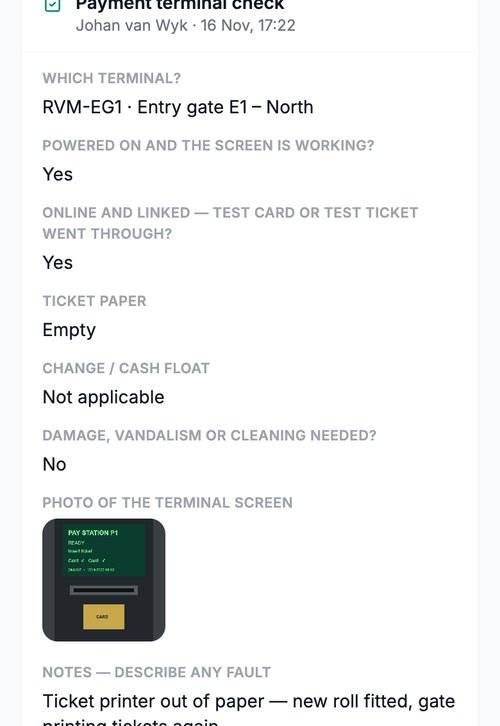
Supervisors and managers open Inspections & checks on their own phone: every terminal check that is not done yet, and everything done in the last days — with the answers, photos and notes one tap away.

  • Filter on Not done during the shift to chase the open ones.
  • Search by terminal tag or person.
Not done and done checks for today
One check: every answer, the photo and the guard's note

STEP 9 · OFFICE

The office has the proof

Where: Tasks

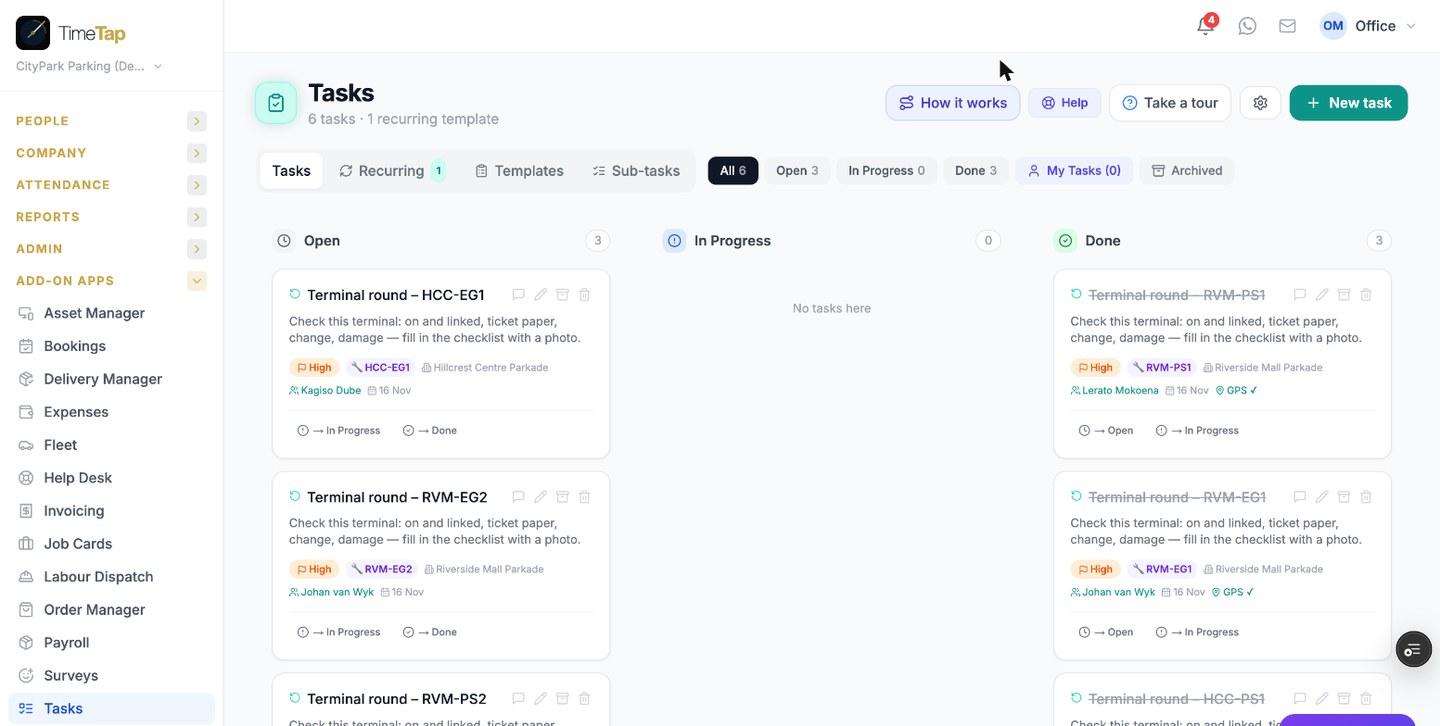
The Tasks board shows today's round per terminal: open, in progress and done, with the guard, the site and a GPS ✓ where the location was recorded. Open any task to see the checklist answers and photo — the proof that the terminal was checked, and what was wrong with it.

  • Faults written in the notes can be logged on the terminal under Log Maintenance, so its history stays with the asset.
Today's terminal round on the office Tasks board

Set up once

  • Branches — one per site or parkade.
  • Assets — every pay station and entry/exit gate, with Include in recurring tasks on and the guard who checks it as Inspector.
  • QR labels — printed and stuck on each terminal.
  • Checklist — e.g. Payment terminal check in Surveys, starting with a Which terminal? question.
  • Recurring task — Terminal round, every day, with the checklist linked.
  • Guards signed in to the staff app with notifications on.

What the terminal check covers

Which terminal (picked from the asset list)Powered on, screen workingOnline and linked — test card or ticket went throughTicket paper levelChange / cash floatDamage, vandalism or cleaningPhoto of the terminal screenNotes on any fault

You edit the checklist yourself — add readings, photos or questions for your own procedures.

Questions

Can a terminal be checked more than once a day?+

The round makes one check per terminal per day. If a terminal needs another look, the guard can fill in the checklist again from the same task (Fill in again), or a supervisor can add a one-off task for it.

What if a different guard is on duty?+

Each terminal's daily task goes to its Inspector. Change the inspector on the terminal when the roster changes — the next morning's task goes to the new person. A supervisor can also reassign a single day's task.

What proof do we have that the check was really done?+

Every check keeps the guard's name, the time, the answers and a required photo of the terminal screen. When it is marked done on a phone with location on, the place is recorded too (GPS ✓ on the board).

What happens when a terminal is faulty?+

The guard says so in the checklist and describes it in the notes with the photo. The supervisor sees it under Inspections & checks, and the office can log the fault as maintenance on the terminal so its history stays with it.

Do we have to use these questions?+

No. The checklist is yours — add cash-up totals, ticket counts, cleaning, signage or anything else your sites need.

The TimeTap features behind it

Also see: Transformer maintenance · Generator service

Try it with your own terminals

Set up in minutes. 14 days free, no credit card.

Start free trial